# Live Activity Monitoring
> Track the performance of F5 NGINX Plus and your apps in real time, on the built-in live activity monitoring dashboard or by feeding the JSON to other tools.
This article describes how to configure and use runtime monitoring services in NGINX Plus: the interactive Dashboard and NGINX Plus REST API.
## About Live Activity Monitoring
NGINX Plus provides various monitoring tools for your server infrastructure:
- the interactive Dashboard page available since NGINX Plus [Release 9](nginx/releases.md#r9) - a real-time live activity monitoring interface that shows key load and performance metrics of your server infrastructure.
- NGINX REST API available since NGINX Plus [Release 14](nginx/releases.md#r14) - an interface that can obtain extended status information, reset statistics, manage upstream servers on-the-fly, and manage key-value store. With the API you can connect NGINX Plus status information with third-party tools that support the JSON interface, for example, NewRelic or your own dashboard.
> **Note**: Prior to NGINX Plus [R14](nginx/releases.md#r14), gathering statistics and management of upstream servers in the Dashboard was performed with the [status](https://nginx.org/en/docs/http/ngx_http_status_module.html#status) and [upstream_conf](https://nginx.org/en/docs/http/ngx_http_upstream_conf_module.html) modules. Now the extended [status](https://nginx.org/en/docs/http/ngx_http_status_module.html#status) and [upstream_conf](https://nginx.org/en/docs/http/ngx_http_upstream_conf_module.html) modules are superseded by the [api](https://nginx.org/en/docs/http/ngx_http_api_module.html) module. Starting from R16, the [status](https://nginx.org/en/docs/http/ngx_http_status_module.html#status) and [upstream_conf](https://nginx.org/en/docs/http/ngx_http_upstream_conf_module.html) modules will be removed and completely superseded with the [api](https://nginx.org/en/docs/http/ngx_http_api_module.html) module.
* * *
[](https://demo.nginx.com/dashboard.html "Live status metrics from NGINX Plus")
* * *
## Prerequisites
- NGINX Plus [R14](nginx/releases.md#r14) and later for NGINX Plus REST API and the Dashboard
- Data for statistics (see [Gathering Data to Appear in Statistics](#status_data))
## Gathering Data to Appear in Statistics
In order to collect data from virtual servers, upstream server groups, or cache zones, you will need to *enable shared memory zones* for the objects you want to collect data for. A shared memory zone stores configuration and runtime state information referenced by NGINX worker processes.
- To make [HTTP](nginx/admin-guide/load-balancer/http-load-balancer.md) and [TCP](nginx/admin-guide/load-balancer/tcp-udp-load-balancer.md) server to appear in statistics, specify the [`status_zone`](https://nginx.org/en/docs/http/ngx_http_api_module.html#status_zone) directive. The same zone name can be specified more than once for many [`server`](https://nginx.org/en/docs/http/ngx_http_core_module.html#server) blocks. Since [R19](nginx/releases.md#r19), the [status_zone](https://nginx.org/en/docs/http/ngx_http_api_module.html#status_zone) directive can also be specified for [`location`](https://nginx.org/en/docs/http/ngx_http_core_module.html#location) blocks - in this case, the statistics will be aggregated separately for servers and locations in the Dashboard:
```nginx
server {
# ...
status_zone status_page;
location / {
proxy_pass http://backend;
status_zone location_zone;
}
}
```
- To make an upstream server group to appear in statistics, specify the [`zone`](https://nginx.org/en/docs/http/ngx_http_upstream_module.html#zone) directive per each [`upstream`](https://nginx.org/en/docs/http/ngx_http_upstream_module.html#upstream) block:
```nginx
upstream backend {
zone backend 64k;
server backend1.example.com;
server backend2.example.com;
}
```
- To make cache appear in statistics, make sure that caching is enabled in your configuration. A shared memory zone for caching is specified in the [`proxy_cache_path`](https://nginx.org/en/docs/http/ngx_http_proxy_module.html#proxy_cache_path), [`fastcgi_cache_path`](https://nginx.org/en/docs/http/ngx_http_fastcgi_module.html#fastcgi_cache_path), [`scgi_cache_path`](https://nginx.org/en/docs/http/ngx_http_scgi_module.html#scgi_cache_path), or [`uwsgi_cache_path`](https://nginx.org/en/docs/http/ngx_http_uwsgi_module.html#uwsgi_cache_path">uwsgi_cache_path) directive in the `keys_zone` parameter. See [NGINX Content Caching](nginx/admin-guide/content-cache/content-caching.md) for more information:
```nginx
http {
# ...
proxy_cache_path /data/nginx/cache keys_zone=one:10m;
}
```
- To make health checks appear in statistics, make sure that health checks are enabled with the [`health_check`](https://nginx.org/en/docs/http/ngx_http_upstream_hc_module.html) directive and the server group resides in the [shared memory](https://nginx.org/en/docs/http/ngx_http_api_module.html#status_zone). See [HTTP Health Checks](nginx/admin-guide/load-balancer/http-health-check.md) and [TCP Health Checks](nginx/admin-guide/load-balancer/tcp-health-check.md) for more information.
```nginx
server {
# ...
status_zone status_page;
location / {
proxy_pass http://backend;
health_check;
}
}
```
- To make cluster information appear in the Dashboard, make sure that F5 NGINX Plus instances are organized in the cluster and zone synchronization is enabled on each instance. See [Runtime State Sharing in a Cluster](https://docs.nginx.com/nginx/admin-guide/high-availability/zone_sync/) for details.
- To make resolver statistics appear in the Dashboard, specify the [`status_zone`](https://nginx.org/en/docs/http/ngx_http_core_module.html#resolver_status_zone) parameter of the [`resolver`](https://nginx.org/en/docs/http/ngx_http_core_module.html#resolver) directive:
```nginx
resolver 192.168.33.70 status_zone=resolver-zone1;
server {
# ...
}
```
- When finished, save and exit configuration file.
- Test the configuration and reload NGINX Plus:
```shell
sudo nginx -t && sudo nginx -s reload
```
## Configuring the API
To enable the API:
- In the [`http`](https://nginx.org/en/docs/http/ngx_http_core_module.html#http) context, specify a [`server`](https://nginx.org/en/docs/http/ngx_http_core_module.html#server) block that will be responsible for the API:
```nginx
http {
server {
# your api configuration will be here
}
}
```
- Create a [`location`](https://nginx.org/en/docs/http/ngx_http_core_module.html#location) for API requests and specify the [`api`](https://nginx.org/en/docs/http/ngx_http_api_module.html#api) directive in this location:
```nginx
http {
# ...
server {
listen 192.168.1.23;
# ...
location /api {
api;
# ...
}
}
}
```
- In order to make changes with the API, such as [resetting statistics counters](#json_delete), managing [upstream servers on-the-fly](nginx/admin-guide/load-balancer/dynamic-configuration-api.md) or [key-value storage](/nginx/admin-guide/security-controls/denylisting-ip-addresses.md), managing upstream servers from the [Dashboard](#dashboard_upstream), enable the read-write mode for the API by specifying the `write=on` parameter for the [`api`](https://nginx.org/en/docs/http/ngx_http_api_module.html#api) directive:
```nginx
http {
# ...
server {
listen 192.168.1.23;
# ...
location /api {
api write=on;
# ...
}
}
}
```
- It is recommended restricting access to the API location, for example, allow access only from local networks with [`allow`](https://nginx.org/en/docs/http/ngx_http_access_module.html#allow) and [`deny`](https://nginx.org/en/docs/http/ngx_http_access_module.html#deny) directives:
```nginx
http {
# ...
server {
listen 192.168.1.23;
# ...
location /api {
api write=on;
allow 192.168.1.0/24;
deny all;
}
}
}
```
- It is also recommended restricting access to `PATCH`, `POST`, and `DELETE` methods to particular users. This can be done by implementing [`HTTP basic authentication`](https://nginx.org/en/docs/http/ngx_http_auth_basic_module.html):
```nginx
http {
# ...
server {
listen 192.168.1.23;
# ...
location /api {
limit_except GET {
auth_basic "NGINX Plus API";
auth_basic_user_file /path/to/passwd/file;
}
api write=on;
allow 192.168.1.0/24;
deny all;
}
}
}
```
- Enable the [Dashboard](#dashboard) by specifying the `/dashboard.html` location. By default the Dashboard is located in the root directory (for example, `/usr/share/nginx/html`) specified by the [`root`](https://nginx.org/en/docs/http/ngx_http_core_module.html#root) directive:
```nginx
http {
# ...
server {
listen 192.168.1.23;
# ...
location /api {
limit_except GET {
auth_basic "NGINX Plus API";
auth_basic_user_file /path/to/passwd/file;
}
api write=on;
allow 192.168.1.0/24;
deny all;
}
location = /dashboard.html {
root /usr/share/nginx/html;
}
}
}
```
- As an option you can try the [Swagger UI](#swagger_enable) - an interactive documentation tool for the API specification supplied in a OpenAPI YAML file and used with NGINX Plus.
Download the Swagger UI and the OpenAPI YAML specification, specify a [`location`](https://nginx.org/en/docs/http/ngx_http_core_module.html#location) for them, for example, */swagger-ui*, the path to its files with the [`root`](https://nginx.org/en/docs/http/ngx_http_core_module.html#root) directive, for example, */usr/share/nginx/html* and limit access to local networks with [`allow`](https://nginx.org/en/docs/http/ngx_http_access_module.html#allow) and [`deny`](https://nginx.org/en/docs/http/ngx_http_access_module.html#deny) directives. See [The Swagger UI](#the-swagger-ui) section for details.
```nginx
http {
# ...
server {
listen 192.168.1.23;
# ...
location /api {
limit_except GET {
auth_basic "NGINX Plus API";
auth_basic_user_file /path/to/passwd/file;
}
api write=on;
allow 192.168.1.0/24;
deny all;
}
location = /dashboard.html {
root /usr/share/nginx/html;
}
location /swagger-ui {
add_header Content-Security-Policy "default-src 'self'";
root /usr/share/nginx/html;
allow 192.168.1.0/24;
deny all;
}
}
}
```
## Using the Dashboard
NGINX Plus Dashboard provides a real-time live activity monitoring interface that shows key load and performance metrics of your server infrastructure.
### Accessing the Dashboard
In the address bar of your browser, type-in the address that corresponds to your Dashboard page (in our example `http://192.168.1.23/dashboard.html`). This will display the Dashboard page located at `/usr/share/nginx/html` as specified in the `root` directive.
There is also a live demo page from NGINX available at [demo.nginx.com/dashboard.html](https://demo.nginx.com/dashboard.html):
[](https://demo.nginx.com/dashboard.html "Live load-balancing status from NGINX Plus")
### Tabs Overview
All information in NGINX Plus Dashboard is represented in tabs.

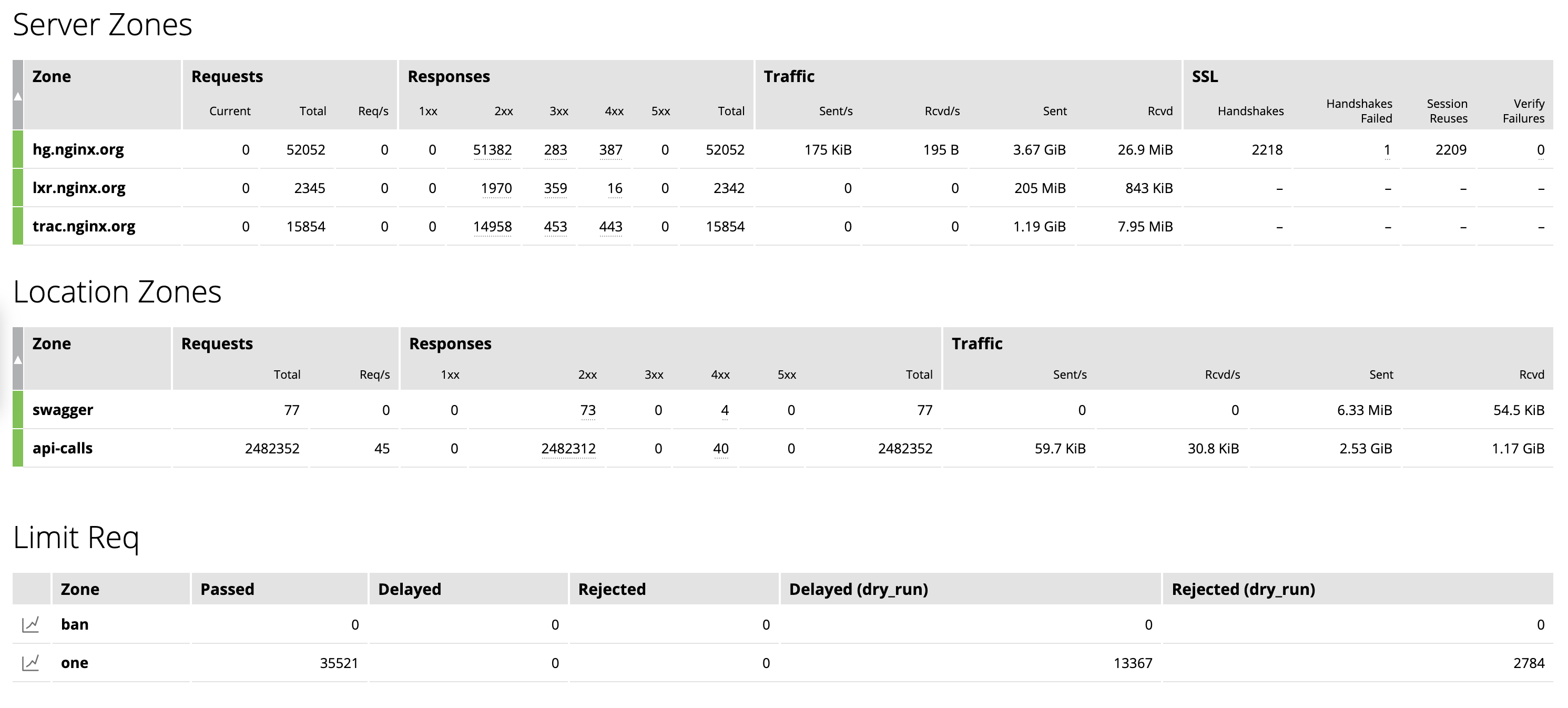
The **HTTP Zones** tab gives detailed statistics on the frontend performance. Statistics are shown per each [`server`](https://nginx.org/en/docs/http/ngx_http_core_module.html#server), [`location`](https://nginx.org/en/docs/http/ngx_http_core_module.html#location) and [`limit_req`](https://nginx.org/en/docs/http/ngx_http_limit_req_module.html) zones in the [`http`](https://nginx.org/en/docs/http/ngx_http_core_module.html#http) context. For NGINX Plus to collect information for each server, you must include the [`status_zone`](https://nginx.org/en/docs/http/ngx_http_api_module.html#status_zone) directive in each `server` or `location` block. To include charts for `limit_req` limiting, you must configure the [`limit_req_zone`](https://nginx.org/en/docs/http/ngx_http_limit_req_module.html#limit_req_zone) directive.
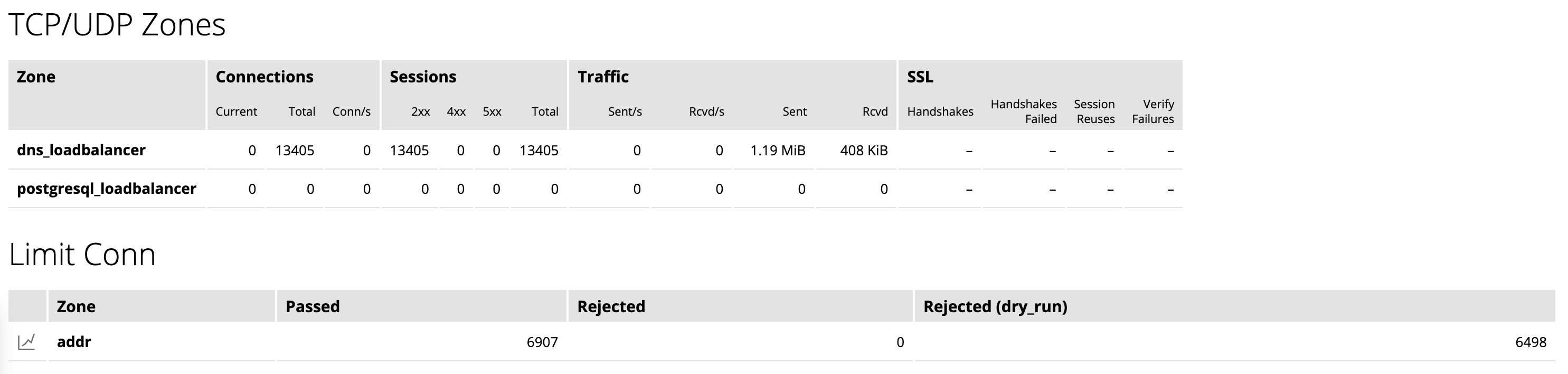
TCP and UDP status zones with charts for connection limiting ([`limit_conn`](https://nginx.org/en/docs/stream/ngx_stream_limit_conn_module.html)) appear on the **TCP/UDP Zones** tab.
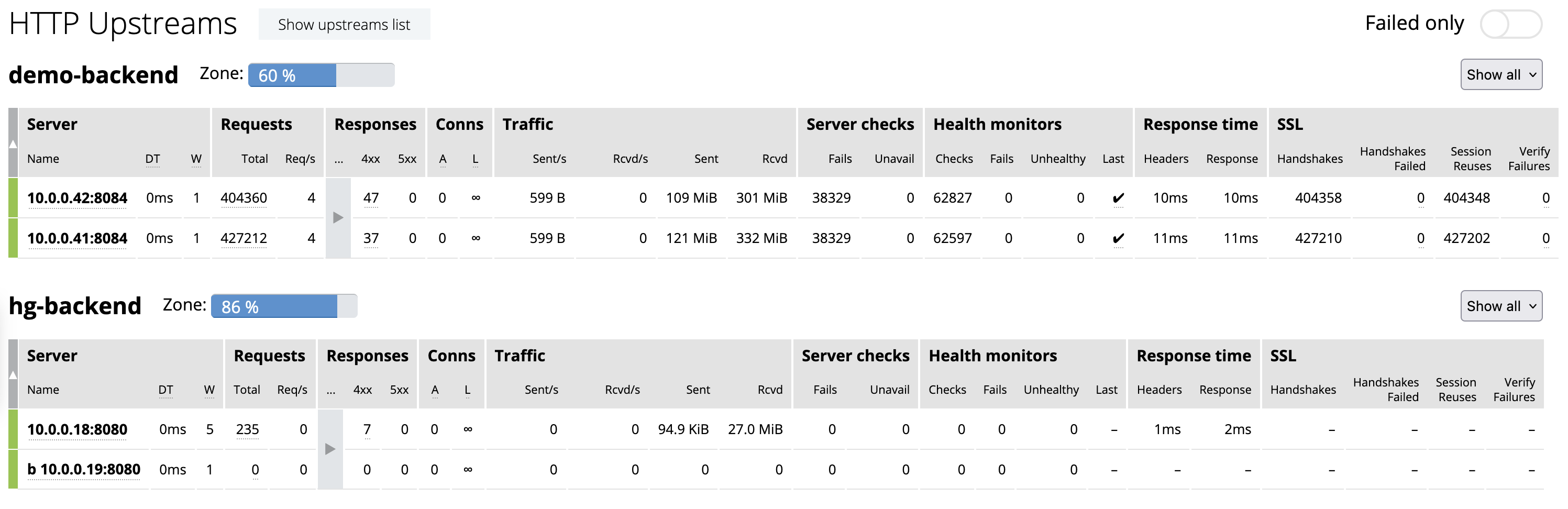
The **HTTP Upstreams** tab provides information about each upstream group for HTTP and HTTPS traffic. TCP and UDP upstream groups appear on the **TCP/UDP Upstreams** tab. For NGINX Plus to collect information for an upstream group, you must include the [`zone`](https://nginx.org/en/docs/http/ngx_http_upstream_module.html#zone) directive in the [`upstream`](https://nginx.org/en/docs/http/ngx_http_upstream_module.html#upstream) configuration block.
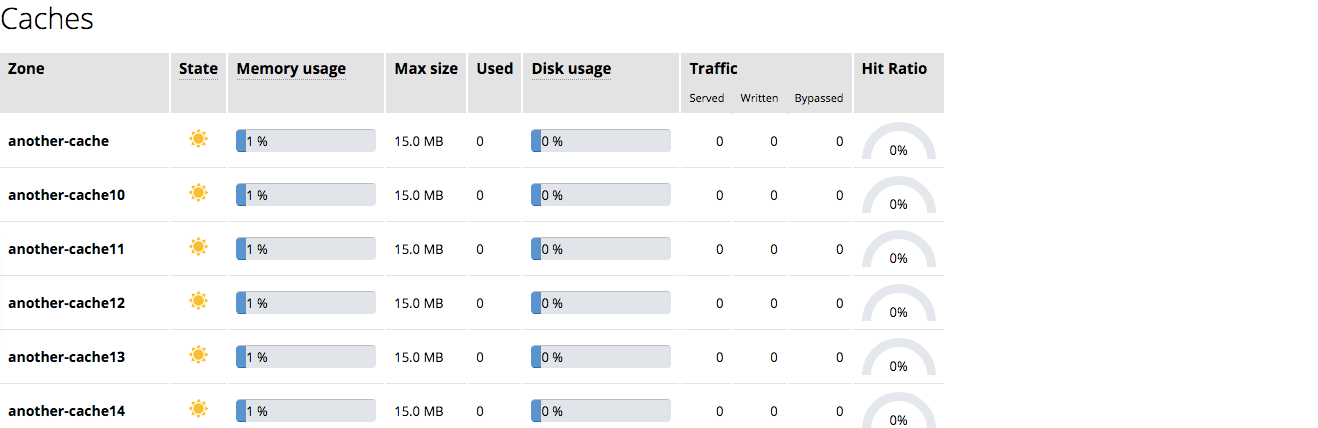
The **Caches** tab provides statistics about the caches configured in NGINX Plus. For NGINX Plus to collect information for an upstream group, you must [configure cache](nginx/admin-guide/content-cache/content-caching.md).
The **Shared Zones** tab shows how much memory is used by each shared memory zone, including cache zones, SSL session cache, upstream zones, keyval zones, session log, sticky sessions, limit_conn and limit_req zones.
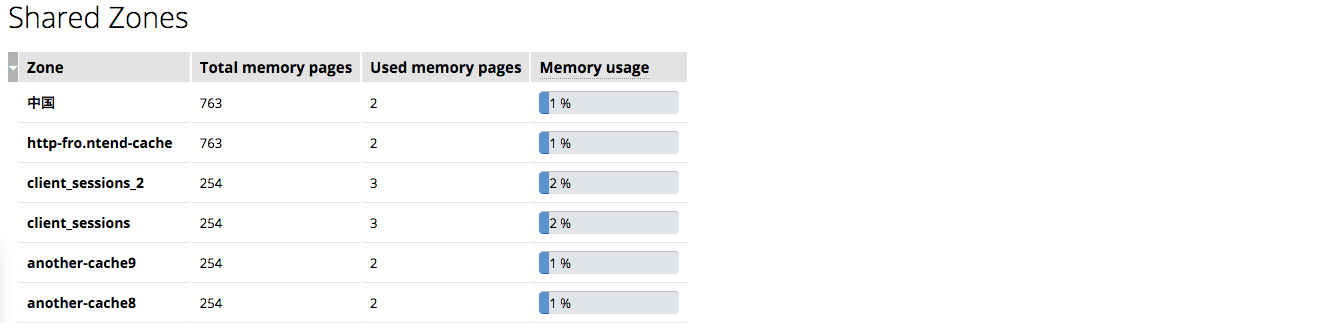
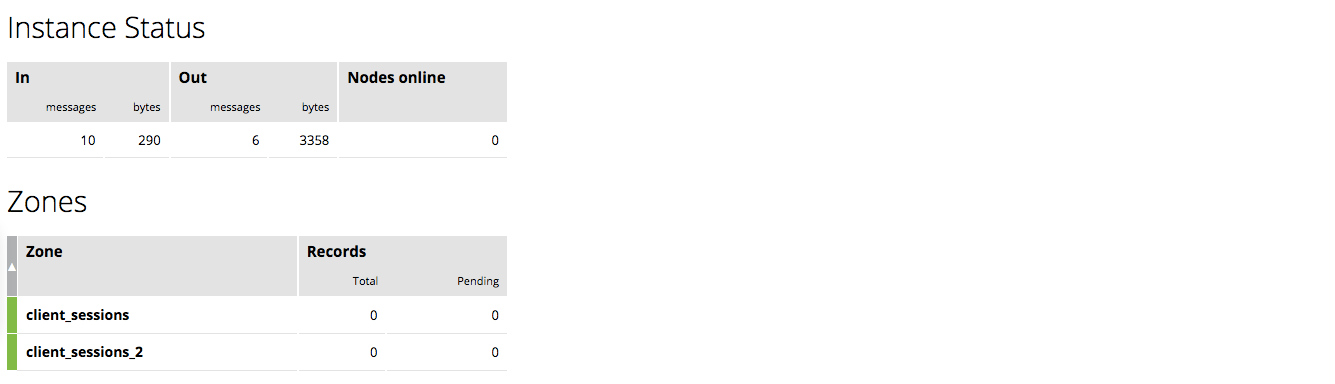
The **Cluster** tab provides the synchronization status of shared memory zones across all NGINX cluster nodes. See [Runtime State Sharing in a Cluster](https://docs.nginx.com/nginx/admin-guide/high-availability/zone_sync/) for details on how to organize NGINX instances in a cluster and configure synchronization between all cluster nodes.
The **Resolvers** tab provides DNS server statistics of requests and responses per each DNS status zone. For NGINX Plus to collect information about your DNS servers, include the [`status_zone`](https://nginx.org/en/docs/http/ngx_http_core_module.html#resolver_status_zone) parameter in the [`resolver`](https://nginx.org/en/docs/http/ngx_http_core_module.html#resolver) directive.

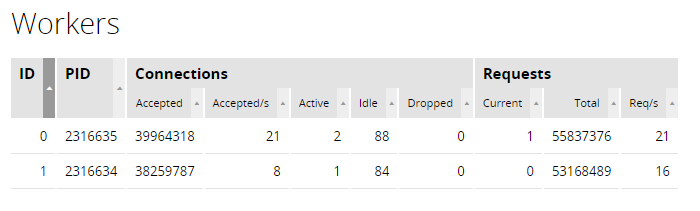
The **Workers** tab provides information about worker processes and shows per-worker connection statistics.
### Managing Upstream Servers from the Dashboard
You can add new or modify and remove upstream servers directly from the Dashboard interface. Note that you must previously enable the [`api`](https://nginx.org/en/docs/http/ngx_http_api_module.html#api) in the write mode.
In the **Upstreams** or **TCP/UDP Upstreams** tab, click the pencil icon next to the server name and choose between **Edit selected** and **Add server** buttons:
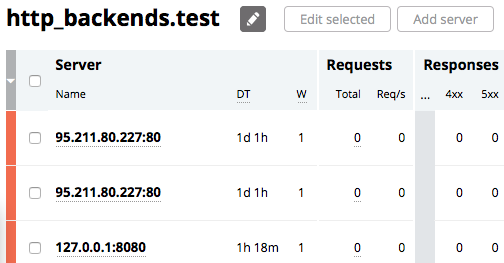
To add an upstream server, click **Add server**:
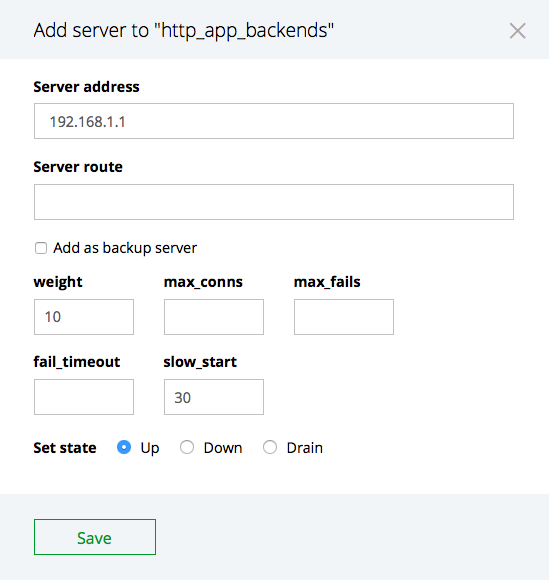
To remove or modify an upstream server, click the box to the left of each server’s name, then click **Edit selected**:
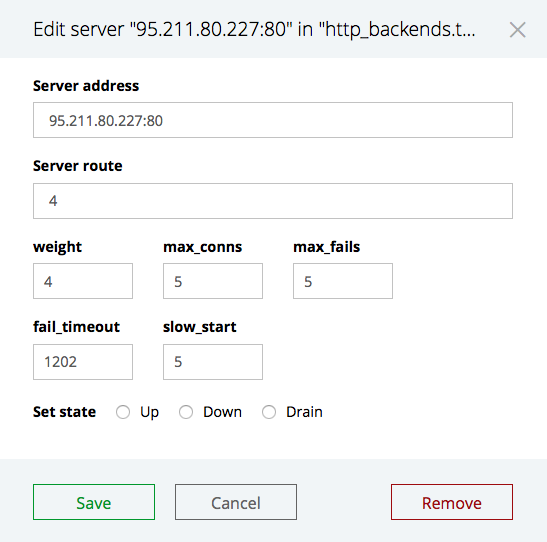
When finished, click the **Save** button to save the changes.
### Configuring Dashboard Options
You can configure the threshold for Dashboard warnings and alerts by clicking the Gear button in the Tabs menu:
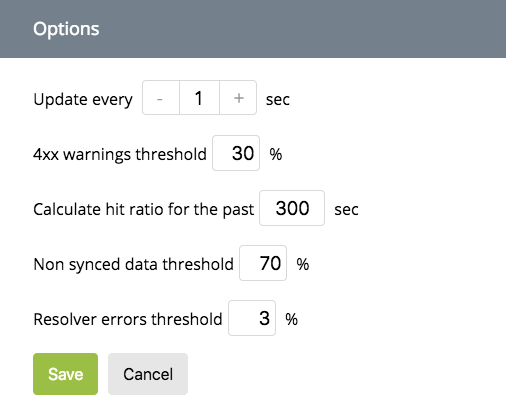
**Update every N sec** - updates the Dashboard data after the specified number of seconds, default is `1` second.
**4xx warnings threshold** - represents the ratio between the numbers of `Total` requests and `4xx` errors for `HTTP Upstreams` and `HTTP Zones`. Default is `30%`.
**Calculate hit ratio for the past N sec** - represents all cache hits within the specified number of seconds for `Caches`. Default is `300` seconds.
**Not synced data threshold** - represents the ratio between `Pending` records and `Total` records for `Clusters`. Default is `70%`.
**Resolver errors threshold** - represents the ratio between `Requests` and resolver errors within the time frame specified in **Update every N sec** for `Resolvers`. Default is `3%`.
## Using the REST API
With NGINX Plus, statistics of your server infrastructure can be managed with the REST API interface. The API is based on standard HTTP requests: statistics can be obtained with `GET` requests and reset with `DELETE` requests. Upstream servers can be added with `POST` requests and modified with `PATCH` requests. See [Managing Upstream Servers with the API](nginx/admin-guide/load-balancer/dynamic-configuration-api.md) for more information.
The requests are sent in the JSON format that allows you to connect the stats to monitoring tools or dashboards that support JSON.
### Getting statistics with the API
The status information of any element can be accessed with a slash-separated URL. The URL may look as follows:
[`https://demo.nginx.com/api/9/http/caches/http_cache?fields=expired,bypass`](https://demo.nginx.com/api/9/http/caches/http_cache?fields=expired,bypass)
where:
- `/api` is the location you have configured in the NGINX configuration file for the API
- `/9` is the API version, the current API version is `9`
- `/http/caches/http_cache` is the path to the resource
- `?fields=expired,bypass` is an optional argument that specifies which fields of the requested object will be output
The requested information is returned in the JSON data format.
To get the list of all available rootpoints, send the `GET` request with the 'curl' command in terminal (in the example, JSON pretty print extension "json_pp" is used):
```shell
curl -s 'https://demo.nginx.com/api/9/' | json_pp
```
The JSON data returned:
```json
[
"nginx",
"processes",
"connections",
"slabs",
"workers",
"http",
"stream",
"resolvers",
"ssl"
"workers"
]
```
To get the statistics for a particular endpoint, for example, obtain general information about NGINX, send the following `GET` request:
```shell
curl -s 'https://demo.nginx.com/api/9/nginx' | json_pp
```
The JSON data returned:
```json
{
"version" : "1.29.8",
"build" : "nginx-plus-r37.0.0",
"address" : "206.251.255.64",
"generation" : 14,
"load_timestamp" : "2026-05-13T10:00:00.114Z",
"timestamp" : "2026-05-13T14:06:36.475Z",
"pid" : 2201,
"ppid" : 92033
}
```
You can specify which fields of the requested object will be output with the optional *fields* argument in the request line. For example, to display only NGINX Plus version and build, specify the command:
```shell
curl -s 'https://demo.nginx.com/api/9/nginx?fields=version,build' | json_pp
```
The JSON data returned:
```json
{
"version" : "1.29.8",
"build" : "nginx-plus-r37.0.0"
}
```
For a complete list of available endpoints and supported methods see [reference documentation](https://nginx.org/en/docs/http/ngx_http_api_module.html). This documentation is also available in [Redoc format](nginx/admin-guide/monitoring/nginx-plus-api-reference.md).
### Resetting the statistics
Resetting the statistics is performed by sending an API command with the `DELETE` method to a target endpoint. Make sure that your API is configured in the read-write mode.
You can reset the following types of statistics:
- abnormally terminated and respawned child processes
- accepted and dropped client connections
- SSL handshakes and session reuses
- the `reqs` and `fails` metrics for each memory slot
- total client HTTP requests
- accepted and discarded requests, responses, received and sent bytes in a particular HTTP server zone
- cache hits and cache misses in a particular cache zone
- statistics for a particular HTTP or stream upstream server in an upstream server group
For example, to reset the number of abnormally terminated and respawned child processes, you can perform the following command in the terminal via curl:
```shell
curl -X DELETE -i 'http://192.168.1.23/api/9/processes'
```
To reset accepted and dropped client connections perform the following command:
```shell
curl -X DELETE -i 'http://192.168.1.23/api/9/connections'
```
### Managing Upstream Servers with the API
The NGINX Plus REST API supports `POST` and `PATCH` HTTP methods to dynamically add a server to the upstream group or modify server parameters.
To dynamically change the configuration of an upstream group, send an HTTP request with the appropriate API method. The following examples use the `curl` command, but any mechanism for making HTTP requests is supported. All request bodies and responses are in JSON format.
The URI specifies the following information in this order:
- The hostname or IP address of the node that handles the request (in the following examples, **192.168.1.23**)
- The location where the `api` directive appears (**api**)
- The API version (**9**)
- The name of the upstream group, complete its place in the NGINX Plus configuration hierarchy represented as a slash-separated path (**http/upstreams/appservers**)
For example, to add a new server to the **appservers** upstream group, send the following `curl` command:
```shell
curl -X POST -d '{ \
"server": "10.0.0.1:8089", \
"weight": 4, \
"max_conns": 0, \
"max_fails": 0, \
"fail_timeout": "10s", \
"slow_start": "10s", \
"backup": true, \
"down": true \
}' -s 'http://192.168.1.23/api/9/http/upstreams/appservers/servers'
```
To remove a server from the upstream group:
```shell
curl -X DELETE -s 'http://192.168.1.23/api/9/http/upstreams/appservers/servers/0'
```
To set the `down` parameter for the first server in the group (with ID `0`):
```shell
curl -X PATCH -d '{ "down": true }' -s 'http://192.168.1.23/api/9/http/upstreams/appservers/servers/0'
```
## OpenAPI Specification {#swagger}
The NGINX Plus OpenAPI Specification is available in several formats:
- as [reference documentation](https://nginx.org/en/docs/http/ngx_http_api_module.html)
- in [Redoc format](nginx/admin-guide/monitoring/nginx-plus-api-reference.md)
- as a [YAML file](#yaml-version)
The YAML version can be used with external tools, such as Swagger UI, to explore the REST API and send API commands through a graphical interface. You can [enable the Swagger UI](#swagger_enable) in your environment or copy the link to the [appropriate YAML file](#yaml-version), and import it into another OpenAPI v2-compatible tool.
**Note:** Swagger UI and the YAML OpenAPI spec are intended for documentation and visualization of NGINX API commands only. For security reasons it is not recommended using it in a production environment.
Prior to NGINX Plus [Release 25](nginx/releases.md#r25), the Swagger UI was shipped together with NGINX Plus packages. Since NGINX Plus [Release 26](nginx/releases.md#r26), the OpenAPI YAML specification and the Swagger UI is published separately, below.
### OpenAPI versions {#yaml-version}
This table matches each OpenAPI YAML file version to the corresponding [NGINX Plus release](nginx/releases.md).
|OpenAPI YAML File/API Version | NGINX Plus Version | Changes |
| ---| --- | --- |
|[[icon: download]OpenAPI v2](/nginx/admin-guide/yaml/v9/nginx_api.yaml) for API version 9 | NGINX Plus Release [PLS37.0.0 LTS](/nginx/releases.md#r37.0) | The `response_time_hist` data for each HTTP [upstream](https://nginx.org/en/docs/http/ngx_http_api_module.html#def_nginx_http_upstream) were added|
|[[icon: download]OpenAPI v2](/nginx/admin-guide/yaml/v9/nginx_api.yaml) for API version 9 | NGINX Plus Releases [33](/nginx/releases.md#r33), [34](nginx/releases.md#r34), [35](nginx/releases.md#r35), [36](nginx/releases.md#r36) | The [`/license`](https://nginx.org/en/docs/http/ngx_http_api_module.html#license) data were added|
|[[icon: download]OpenAPI v2](/nginx/admin-guide/yaml/v9/nginx_api.yaml) for API version 9 | NGINX Plus Releases [30](nginx/releases.md#r30), [31](nginx/releases.md#r31), [32](nginx/releases.md#r32) | The [`/workers/`](https://nginx.org/en/docs/http/ngx_http_api_module.html#workers_) data were added|
|[[icon: download]OpenAPI v2](/nginx/admin-guide/yaml/v8/nginx_api.yaml) for API version 8 | NGINX Plus Releases [27](nginx/releases.md#r27), [28](nginx/releases.md#r28), [29](nginx/releases.md#r29) | SSL statistics for each HTTP [upstream](https://nginx.org/en/docs/http/ngx_http_api_module.html#def_nginx_http_upstream) and stream [upstream](https://nginx.org/en/docs/http/ngx_http_api_module.html#def_nginx_stream_upstream), SSL statistics for each HTTP [server zone](https://nginx.org/en/docs/http/ngx_http_api_module.html#def_nginx_http_server_zone) and stream [server zone](https://nginx.org/en/docs/http/ngx_http_api_module.html#def_nginx_stream_server_zone), extended statistics for [SSL](https://nginx.org/en/docs/http/ngx_http_api_module.html#def_nginx_ssl_object) endpoint|
|[[icon: download]OpenAPI v2](/nginx/admin-guide/yaml/v7/nginx_api.yaml) for API version 7 | NGINX Plus Releases [25](nginx/releases.md#r25), [26](nginx/releases.md#r26),| The `codes` data in `responses` for each HTTP [upstream](https://nginx.org/en/docs/http/ngx_http_api_module.html#def_nginx_http_upstream), [server zone](https://nginx.org/en/docs/http/ngx_http_api_module.html#def_nginx_http_server_zone), and [location zone](https://nginx.org/en/docs/http/ngx_http_api_module.html#def_nginx_http_location_zone) were added|
|[[icon: download]OpenAPI v2](/nginx/admin-guide/yaml/v6/nginx_api.yaml) for API version 6 | NGINX Plus Releases [20](nginx/releases.md#r20), [21](nginx/releases.md#r21), [22](nginx/releases.md#r22), [23](nginx/releases.md#r23), [24](nginx/releases.md#r24) | The [`/stream/limit_conns/`](https://nginx.org/en/docs/http/ngx_http_api_module.html#stream_limit_conns_), [`/http/limit_conns/`](https://nginx.org/en/docs/http/ngx_http_api_module.html#http_limit_conns_), and [`/http/limit_reqs/`](https://nginx.org/en/docs/http/ngx_http_api_module.html#http_limit_reqs_) data were added |
|[[icon: download]OpenAPI v2](/nginx/admin-guide/yaml/v5/nginx_api.yaml) for API version 5 | NGINX Plus Release [19](nginx/releases.md#r19) | The `expire` parameter of a [key-value](https://nginx.org/en/docs/http/ngx_http_keyval_module.html) pair can be [set](https://nginx.org/en/docs/http/ngx_http_api_module.html#postHttpKeyvalZoneData) or [changed](https://nginx.org/en/docs/http/ngx_http_api_module.html#patchHttpKeyvalZoneKeyValue), the [`/resolvers/`](https://nginx.org/en/docs/http/ngx_http_api_module.html#resolvers_) and [`/http/location_zones/`](https://nginx.org/en/docs/http/ngx_http_api_module.html#http_location_zones_) data were added |
|[[icon: download]OpenAPI v2](/nginx/admin-guide/yaml/v4/nginx_api.yaml) for API version 4 | NGINX Plus Release [18](nginx/releases.md#r18) | The `path` and `method` fields of [nginx error object](https://nginx.org/en/docs/http/ngx_http_api_module.html#def_nginx_error) were removed. These fields continue to exist in earlier api versions, but show an empty value |
|[[icon: download]OpenAPI v2](/nginx/admin-guide/yaml/v3/nginx_api.yaml) for API version 3 | NGINX Plus Releases [15](nginx/releases.md#r15), [16](nginx/releases.md#r16), [17](nginx/releases.md#r17) | The [`/stream/zone_sync/`](https://nginx.org/en/docs/http/ngx_http_api_module.html#stream_zone_sync_) data were added |
|[[icon: download]OpenAPI v2](/nginx/admin-guide/yaml/v2/nginx_api.yaml) for API version 2 | NGINX Plus Release [14](nginx/releases.md#r14) | The [`drain`](https://nginx.org/en/docs/http/ngx_http_api_module.html#def_nginx_http_upstream_conf_server) parameter was added |
|[[icon: download]OpenAPI v2](/nginx/admin-guide/yaml/v1/nginx_api.yaml) for API version 1 | NGINX Plus Release [13](nginx/releases.md#r13)| The [`/stream/keyvals/`](https://nginx.org/en/docs/http/ngx_http_api_module.html#stream_keyvals_) data were added |
### Enabling the Swagger UI
To enable the Swagger UI:
1. Install and configure the Swagger UI. The installation package and instructions can be found on the [Swagger UI page](https://swagger.io/tools/swagger-ui/download/).
2. Choose the [version of the OpenAPI YAML file](#yaml-version) that matches your version of NGINX Plus, download the file, and put it to the folder containing the Swagger UI files:
3. Configure NGINX Plus to work with the Swagger UI. Create a [`location`](https://nginx.org/en/docs/http/ngx_http_core_module.html#location), for example, */swagger-ui*:
```nginx
location /swagger-ui {
# ...
}
```
4. Specify the path to the Swagger UI files and the YAML spec with the [`root`](https://nginx.org/en/docs/http/ngx_http_core_module.html#root) directive, for example, to `usr/share/nginx/html`:
```nginx
location /swagger-ui {
root /usr/share/nginx/html;
# ...
}
```
For NGINX Plus Release 25 and earlier, the Swagger UI is located in the root directory specified by the [`root`](https://nginx.org/en/docs/http/ngx_http_core_module.html#root) directive, for example, */usr/share/nginx/html*.
5. Restrict access to this location only from a local network with [`allow`](https://nginx.org/en/docs/http/ngx_http_access_module.html#allow) and [`deny`](https://nginx.org/en/docs/http/ngx_http_access_module.html#deny) directives:
```nginx
location /swagger-ui {
root /usr/share/nginx/html;
allow 192.168.1.0/24;
deny all;
}
```
6. It is also recommended enabling Content Security Policy headers that define that all resources are loaded from the same origin as Swagger UI with the [`add_header`](https://nginx.org/en/docs/http/ngx_http_headers_module.html#add_header) directive:
```nginx
location /swagger-ui {
add_header Content-Security-Policy "default-src 'self'";
root /usr/share/nginx/html;
allow 192.168.1.0/24;
deny all;
}
```
### Disabling the Swagger UI
In NGINX Plus Release 25 and earlier, the Swagger UI is a part of NGINX Plus package and is installed by default. For [security reasons](https://support.f5.com/csp/article/K73710094), you may want to block access to the Swagger UI. One of the ways to do it is to [return](https://nginx.org/en/docs/http/ngx_http_rewrite_module.html#return) the `404` status code in response to the URL that matches the `/swagger-ui` location:
```nginx
location /swagger-ui {
return 404;
}
```
### Using the Swagger UI
To access the Swagger UI page:
- In the address bar of your browser, type-in the address of Swagger UI, in our example the address is **:
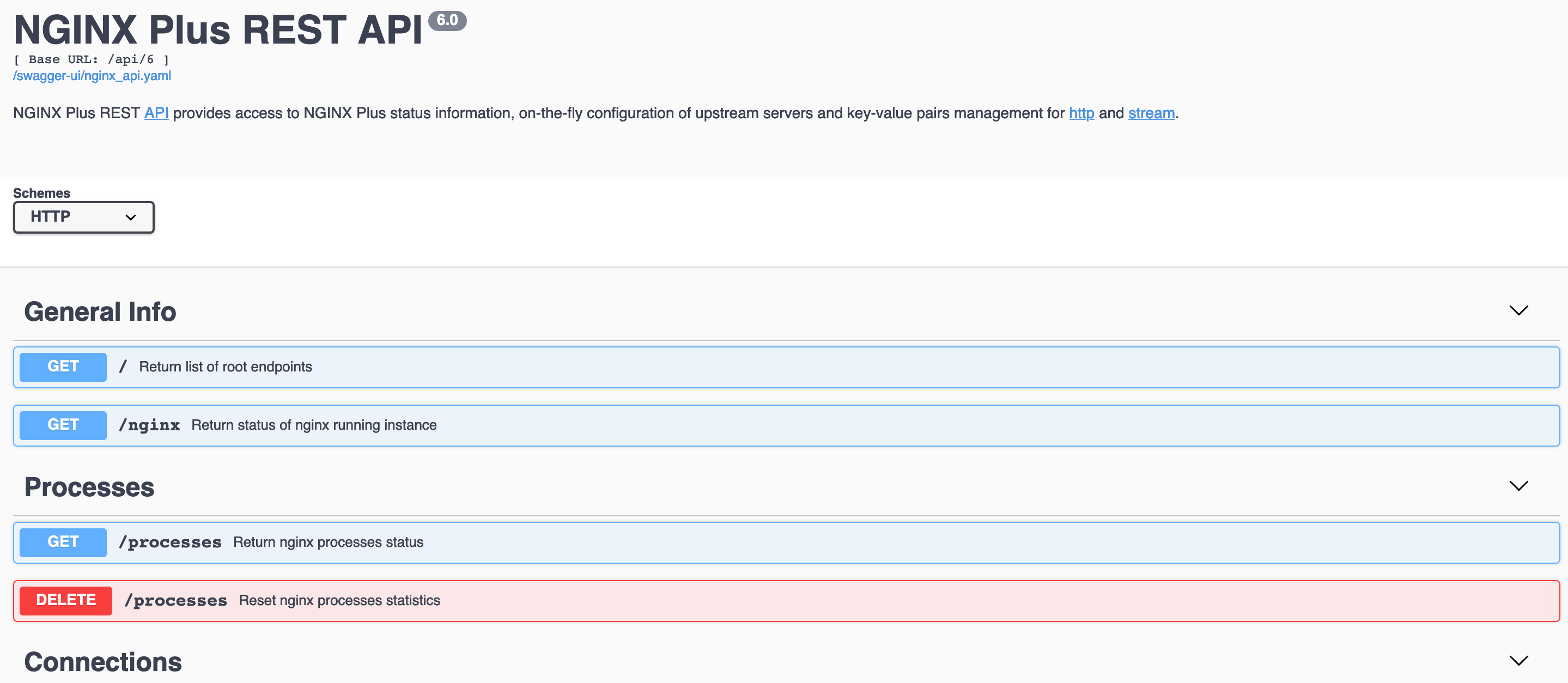
- If you have configured the HTTPS protocol for the Swagger UI page, you will need to choose the "HTTPS" scheme in the "Schemes" menu.
- Click on the operation you want to fulfill.
- Click **Try it out**.
- Fill in the obligatory fields, if required. Generally, the required field is the name of the shared memory zone.
- As an option you can display only particular fields. In the "Fields" line specify the fields you want to be displayed separated by commas. If no fields are specified, then all fields are displayed.
- Click **Execute**. The result and the corresponding HTTP error code will be displayed below the **Execute** command.
### API and Swagger UI Live Examples
NGINX provides live examples of JSON data and Swagger UI on a demo website.
Live example of JSON data is available at: [`https://demo.nginx.com/api/9/`](https://demo.nginx.com/api/9/)
You can send an API command with curl or with a browser:
```shell
curl -s 'https://demo.nginx.com/api/9/'
curl -s 'https://demo.nginx.com/api/9/nginx?fields=version,build'
curl -s 'https://demo.nginx.com/api/9/http/caches/http_cache'
curl -s 'https://demo.nginx.com/api/9/http/upstreams/'
curl -s 'https://demo.nginx.com/api/9/http/upstreams/demo-backend'
curl -s 'https://demo.nginx.com/api/9/http/upstreams/demo-backend/servers/0'
```
The Swagger UI demo page is available at:
[](https://demo.nginx.com/swagger-ui)
Live examples operate in the read-only mode, resetting the statistics via the `DELETE` method and creating/modifying upstream servers with the `POST`/`PATCH` methods are not available. Also note that as the demo API is served over the HTTP protocol, it is required to choose the “HTTP” scheme in the “Schemes” menu on the [Swagger UI demo page](https://demo.nginx.com/swagger-ui/).