# Load Balancing Oracle WebLogic Server with NGINX Open Source and NGINX Plus
> Load balance Oracle WebLogic Servers with NGINX Open Source and the advanced features in F5 NGINX Plus, following our step-by-step setup instructions.
This deployment guide explains how to use NGINX Open Source and F5 NGINX Plus to load balance HTTP and HTTPS traffic across a pool of Oracle WebLogic Server application servers. The detailed instructions in this guide apply to both cloud‑based and on‑premises deployments of Oracle WebLogic Server.
## About NGINX Open Source and NGINX Plus
[NGINX Open Source](https://nginx.org/en) is an open source web server and reverse proxy that has grown in popularity in recent years because of its scalability, outstanding performance, and small footprint. NGINX Open Source was first created to solve the C10K problem (serving 10,000 simultaneous connections on a single web server). NGINX Open Source's features and performance have made it a staple of high‑performance sites – it's [the #1 web server at the 100,000 busiest websites in the world](https://w3techs.com/technologies/cross/web_server/ranking).
[NGINX Plus](https://www.f5.com/products/nginx/nginx-plus) is the commercially supported version of NGINX Open Source. NGINX Plus is a complete application delivery platform, extending the power of NGINX Open Source with a host of enterprise‑ready capabilities that enhance an Oracle WebLogic Server deployment and are instrumental to building web applications at scale:
- Full‑featured [HTTP](nginx/admin-guide/load-balancer/http-load-balancer.md), [TCP, and UDP](nginx/admin-guide/load-balancer/tcp-udp-load-balancer.md) load balancing
- [Intelligent session persistence](nginx/admin-guide/load-balancer/http-load-balancer.md#session-persistence)
- [High‑performance reverse proxy](nginx/admin-guide/web-server/reverse-proxy.md)
- [Caching and offload of dynamic and static content](nginx/admin-guide/content-cache/content-caching.md)
- Adaptive streaming to deliver audio and video to any device
- [Application-aware health checks](nginx/admin-guide/load-balancer/http-health-check.md) and [high availability](nginx/admin-guide/high-availability/ha-keepalived.md)
- [Advanced activity monitoring available via a dashboard or API](nginx/admin-guide/monitoring/live-activity-monitoring.md)
- [Management and real‑time configuration changes with DevOps‑friendly tools](https://www.nginx.com/products/nginx/load-balancing/#load-balancing-api)
## About Oracle WebLogic Server and Oracle Java Cloud Service
Oracle WebLogic Server is one of the industry's leading application servers for building and deploying Java Enterprise Edition Platform ([Java EE](https://www.oracle.com/java/technologies/java-ee-glance.html)) applications, with features for lowering cost of operations, improving performance, enhancing scalability, and supporting the [Oracle Applications](https://www.oracle.com/applications/) portfolio.
We tested the procedures in this guide against [Oracle WebLogic Server Standard Edition 12cR2 (12.2.1)](https://www.oracle.com/middleware/technologies/fusionmiddleware-downloads.html), but the instructions also apply to WebLogic Server Enterprise Edition and WebLogic Suite. For more information about Oracle WebLogic server products, see the [Oracle website](https://www.oracle.com/middleware/weblogic/).
Oracle WebLogic Server is also available on [Oracle Cloud](https://www.oracle.com/index.html) as a service called [Oracle Java Cloud Service](https://www.oracle.com/a/ocom/docs/middleware/oracle-java-cloud-service-ds.pdf), with a variety of general‑purpose and high‑memory shapes and with full administrative control.
You can use the WebLogic Server Administration Control graphical user interface to deploy and undeploy an application to an Oracle Java Cloud Service instance, just as you would deploy and undeploy the application to an on‑premises service instance.
For more information about deploying a Java application on Oracle Java Cloud Service, see [Administering Oracle Java Cloud Service](https://docs.oracle.com/cloud/131/developer_services/CSJSU/java-admin.htm).
## Prerequisites and System Requirements
- An Oracle WebLogic Server application server installed and configured on a physical or virtual system.
- A Linux system to host NGINX Open Source or NGINX Plus. To avoid potential conflicts with other applications, we recommend you install NGINX Plus on a fresh physical or virtual system. For the list of Linux distributions supported by NGINX Plus, see [NGINX Plus Technical Specifications](nginx/technical-specs.md).
- NGINX Open Source 1.9.5 and later, or NGINX Plus R7 and later.
The instructions assume you have basic Linux system administration skills, including the following. Full instructions are not provided for these tasks.
- Deploying and configuring a WebLogic Server application
- Installing Linux software from vendor‑supplied packages
- Editing configuration files
- Copying files between a central administrative system and Linux servers
- Running basic commands to start and stop services
- Reading log files
### About Sample Values and Copying of Text
- `example.com` is used as a sample domain name (in key names and configuration blocks). Replace it with your organization's name.
- Many NGINX Open Source and NGINX Plus configuration blocks in this guide list two sample WebLogic Server application servers with IP addresses 192.168.25.33 and 192.168.25.69. Replace these addresses with the IP addresses of your WebLogic Server servers. Include a line in the configuration block for each server if you have more or fewer than two.
- For readability reasons, some commands appear on multiple lines. If you want to copy and paste them into a terminal window, we recommend that you first copy them into a text editor, where you can substitute the object names that are appropriate for your deployment and remove any extraneous formatting characters that your browser might insert.
- Some of the examples in this guide are partial and require additional directives or parameters to be complete. You can download complete configuration files for basic and enhanced load balancing from the NGINX website, as instructed in [Creating and Modifying Configuration Files](#config-files). For details about a specific directive or parameter, see the [NGINX reference documentation](https://nginx.org/en/docs/).
- We recommend that you do not copy text from the configuration snippets in this guide into your configuration files. For the recommended way to create configuration files, see [Creating and Modifying Configuration Files](#config-files).
## Configuring an SSL/TLS Certificate for Client Traffic
If you plan to enable SSL/TLS encryption of traffic between NGINX Open Source or NGINX Plus and clients of your WebLogic Server application, you need to configure a server certificate for NGINX Open Source or NGINX Plus.
- SSL/TLS support is enabled by default in all [NGINX Plus packages](https://account.f5.com/myf5) and [NGINX Open Source binaries](https://nginx.org/en/linux_packages.html) provided by NGINX.
- If you are compiling NGINX Open Source from source, include the `--with-http_ssl_module` parameter to enable SSL/TLS support for HTTP traffic (the corresponding parameter for TCP is `--with-stream_ssl_module`, and for email is `--with-mail_ssl_module`, but this guide does not cover either of those protocol types).
- If using binaries from other providers, consult the provider documentation to determine if they support SSL/TLS.
There are several ways to obtain a server certificate, including the following. For your convenience, step-by-step instructions are provided for the second and third options.
- If you already have an SSL certificate for NGINX Open Source or NGINX Plus installed on another UNIX or Linux system (including systems running Apache HTTP Server), copy it to the **/etc/nginx/ssl** directory on the NGINX Open Source or NGINX Plus server.
- Generate a self‑signed certificate as described in [Generating a Self‑Signed Certificate](#certificate-self-signed) below. This is sufficient for testing scenarios, but clients of production deployments generally require a certificate signed by a certificate authority (CA).
- Request a new certificate from a CA or your organization's security group, as described in [Generating a Certificate Request](#certificate-request) below.
For more details on SSL/TLS termination, see the [NGINX Plus Admin Guide](../../admin-guide/security-controls/terminating-ssl-http.md).
### Generating a Self-Signed Certificate
Generate a public‑private key pair and a self‑signed server certificate in PEM format that is based on them.
1. Log in as the root user on a machine that has the `openssl` software installed.
2. Generate the key pair in PEM format (the default). To encrypt the private key, include the `-des3` parameter. (Other encryption algorithms are available, listed on the man page for the [genrsa](https://www.openssl.org/docs/manmaster/man1/openssl-genrsa.html) command.) You are prompted for the passphrase used as the basis for encryption.
```shell
root# openssl genrsa -des3 -out ~/private-key.pem 2048
Generating RSA private key ...
Enter pass phrase for private-key.pem:
```
3. Create a backup of the key file in a secure location. If you lose the key, the certificate becomes unusable.
```shell
root# cp ~/private-key.pem secure-dir/private-key.pem.backup
```
4. Generate the certificate. Include the `-new` and `-x509` parameters to make a new self-signed certificate. Optionally include the `-days` parameter to change the key's validity lifetime from the default of 30 days (10950 days is about 30 years). Respond to the prompts with values appropriate for your testing deployment.
```shell
root# openssl req -new -x509 -key ~/private-key.pem -out ~/self-cert.pem -days 10950
```
5. Copy or move the certificate file and associated key files to the **/etc/nginx/ssl** directory on the NGINX Plus server.
### Generating a Certificate Request
1. Log in as the root user on a machine that has the `openssl` software installed.
2. Create a private key to be packaged in the certificate.
```shell
root# openssl genrsa -out ~/example.com.key 2048
```
3. Create a backup of the key file in a secure location. If you lose the key, the certificate becomes unusable.
```shell
root# cp ~/company.com.key secure-dir/example.com.key.backup
```
4. Create a Certificate Signing Request (CSR) file.
```shell
root# openssl req -new -sha256 -key ~/example.com.key -out ~/example.com.csr
```
5. Request a certificate from a CA or your internal security group, providing the CSR file (**company.com.csr**). As a reminder, never share private keys (**.key** files) directly with third parties.
The certificate needs to be PEM format rather than in the Windows‑compatible PFX format. If you request the certificate from a CA website yourself, choose NGINX or Apache (if available) when asked to select the server platform for which to generate the certificate.
6. Copy or move the certificate file and associated key files to the **/etc/nginx/ssl** directory on the NGINX Plus server.
## Creating and Modifying Configuration Files
To reduce errors, this guide has you copy directives from files provided by NGINX into your configuration files, instead of using a text editor to type in the directives yourself. Then you go through the sections in this guide (starting with [Configuring Virtual Servers for HTTP and HTTPS Traffic](#virtual-servers)) to learn how to modify the directives as required for your deployment.
As provided, there is one file for basic load balancing (with NGINX Open Source or NGINX Plus) and one file for enhanced load balancing (with NGINX Plus). If you are installing and configuring NGINX Open Source or NGINX Plus on a fresh Linux system and using it only to load balance WebLogic Server traffic, you can use the provided file as your main configuration file, which by convention is called **/etc/nginx/nginx.conf**.
We recommend, however, that instead of a single configuration file you use the scheme that is set up automatically when you install an NGINX Plus package, especially if you already have an existing NGINX Open Source or NGINX Plus deployment or plan to expand your use of NGINX Open Source or NGINX Plus to other purposes in future. In the conventional scheme, the main configuration file is still called **/etc/nginx/nginx.conf**, but instead of including all directives in it, you create separate configuration files for different functions and store the files in the **/etc/nginx/conf.d** directory. You then use the `include` directive in the appropriate contexts of the main file to read in the contents of the function‑specific files.
To download the complete configuration file for basic load balancing:
```none
root# cd /etc/nginx/conf.d
root# curl https://www.nginx.com/resource/conf/weblogic-basic.conf > weblogic-basic.conf
```
To download the complete configuration file for enhanced load balancing:
```none
root# cd /etc/nginx/conf.d
root# curl https://www.nginx.com/resource/conf/weblogic-enhanced.conf > weblogic-enhanced.conf
```
(You can also access the URL in a browser and download the file that way.)
To set up the conventional configuration scheme, add an `http` configuration block in the main **nginx.conf** file, if it does not already exist. (The standard placement is below any global directives.) Add this `include` directive with the appropriate filename:
```nginx
http {
include conf.d/weblogic-(basic|enhanced).conf;
}
```
You can also use wildcard notation to reference all files that pertain to a certain function or traffic type in the appropriate context block. For example, if you name all HTTP configuration files **_function_-http.conf**, this is an appropriate include directive:
```nginx
http {
include conf.d/*-http.conf;
}
```
For reference purposes, the full configuration files are also provided in this document:
- [Full Configuration for Basic Load Balancing](#full-configuration-basic)
- [Full Configuration for Enhanced Load Balancing](#full-configuration-enhanced)
We recommend, however, that you do not copy text directly from this document. It does not necessarily use the same mechanisms for positioning text (such as line breaks and white space) as text editors do. In text copied into an editor, lines might run together and indenting of child statements in configuration blocks might be missing or inconsistent. The absence of formatting does not present a problem for NGINX Open Source or NGINX Plus, because (like many compilers) they ignore white space during parsing, relying solely on semicolons and curly braces as delimiters. The absence of white space does, however, make it more difficult for humans to interpret the configuration and modify it without making mistakes.
### About Reloading Updated Configuration
We recommend that each time you complete a set of updates to the configuration, you run the `nginx` `-t` command to test the configuration file for syntactic validity.
```none
root# nginx -t
nginx: the configuration file /etc/nginx/nginx.conf syntax is ok
nginx: configuration file /etc/nginx/nginx.conf test is successful
```
To tell NGINX Plus to start using the new configuration, run one of the following commands:
```none
root# nginx -s reload
```
or
```none
root# service nginx reload
```
## Configuring Basic Load Balancing with NGINX Open Source or NGINX Plus
This section explains how to set up NGINX Open Source or NGINX Plus as a load balancer in front of two WebLogic Server servers. The instructions in the first two sections are mandatory:
- [Configuring Virtual Servers for HTTP and HTTPS Traffic](#virtual-servers)
- [Configuring Basic Load Balancing](#load-balancing-basic)
The instructions in the remaining sections are optional, depending on the requirements of your application:
- [Configuring Basic Session Persistence](#session-persistence-basic)
- [Configuring Proxy of WebSocket Traffic](#websocket)
- [Configuring Content Caching](#caching)
- [Configuring HTTP/2 Support](#http2)
The complete configuration file appears in [Full Configuration for Basic Load Balancing](#full-configuration-basic).
If you are using NGINX Plus, you can configure additional enhanced features after you complete the configuration of basic load balancing. See [Configuring Enhanced Load Balancing with NGINX Plus](#enhanced).
### Configuring Virtual Servers for HTTP and HTTPS Traffic
These directives define virtual servers for HTTP and HTTPS traffic in separate `server` blocks in the top‑level `http` configuration block. All HTTP requests are redirected to the HTTPS server.
1. Configure a `server` block that listens for requests for **"https://example.com"** received on port 443.
The `ssl_certificate` and `ssl_certificate_key` directives are required; substitute the names of the certificate and private key you chose in [Configuring an SSL/TLS Certificate for Client Traffic](#tls-certificate). Here we use the filenames – **server.crt** and **server.key** – specified in the configuration file that we downloaded from the NGINX website in [Creating and Modifying Configuration Files](#config-files).
The other directives are optional but recommended.
```nginx
# In the 'http' block
server {
listen 443 ssl;
server_name example.com;
ssl_certificate /etc/nginx/ssl/server.crt;
ssl_certificate_key /etc/nginx/ssl/server.key;
ssl_session_cache shared:SSL:1m;
ssl_prefer_server_ciphers on;
}
```
Directive documentation: [listen](https://nginx.org/en/docs/http/ngx_http_core_module.html#listen), [server](https://nginx.org/en/docs/http/ngx_http_core_module.html#server), [server_name](https://nginx.org/en/docs/http/ngx_http_core_module.html#server_name), [ssl_certificate and ssl_certificate_key](https://nginx.org/en/docs/http/ngx_http_ssl_module.html#ssl_certificate), [ssl_prefer_server_ciphers](https://nginx.org/en/docs/http/ngx_http_ssl_module.html#ssl_prefer_server_ciphers), [ssl_session_cache](https://nginx.org/en/docs/http/ngx_http_ssl_module.html#ssl_session_cache)
2. Configure a `server` block that permanently redirects requests received on port 80 for **"http://example.com"** to the HTTPS server defined in the previous step.
If you're not using SSL for client connections, omit the `location` block. When instructed in the remainder of this guide to add directives to the `server` block for HTTPS traffic, add them to this block instead.
```nginx
# In the 'http' block
server {
listen 80;
server_name example.com;
# Redirect all HTTP requests to HTTPS
location / {
return 301 https://$server_name$request_uri;
}
}
```
Directive documentation: [listen](https://nginx.org/en/docs/http/ngx_http_core_module.html#listen), [location](https://nginx.org/en/docs/http/ngx_http_core_module.html#location), [return](https://nginx.org/en/docs/http/ngx_http_rewrite_module.html#return), [server](https://nginx.org/en/docs/http/ngx_http_core_module.html#server), [server_name](https://nginx.org/en/docs/http/ngx_http_core_module.html#server_name)
For more information on configuring SSL/TLS, see the [NGINX Plus Admin Guide](../../admin-guide/security-controls/terminating-ssl-http.md) and the reference documentation for the HTTP [SSL/TLS](https://nginx.org/en/docs/http/ngx_http_ssl_module.html) module.
### Configuring Basic Load Balancing
To configure load balancing, you first create a named _upstream group_, which lists your backend servers. You then set up NGINX Open Source or NGINX Plus as a reverse proxy and load balancer by referring to the upstream group in one or more `proxy_pass` directives.
By putting NGINX Open Source or NGINX Plus in front of WebLogic Server servers, you gain a number of benefits in concurrency, resiliency, and scalability, and can take advantage of NGINX's Layer 7 routing, SSL offloading, content caching, and other features. You can read more about those functions and features in [Reverse Proxy Using NGINX Plus](https://www.nginx.com/blog/reverse-proxy-using-nginx-plus/).
1. Configure an _upstream group_ called **weblogic** with two WebLogic Server application servers listening on port 7001, one on IP address 192.168.25.33 and the other on 192.168.25.69.
Note that this block applies only to HTTP and HTTPS traffic, because we're placing it in the `http` block. For information about load balancing WebSocket traffic, see [Configuring Proxy of WebSocket Traffic](#websocket).
```nginx
# In the 'http' block
upstream weblogic {
server 192.168.25.33:7001;
server 192.168.25.69:7001;
}
```
Directive documentation: [server](https://nginx.org/en/docs/http/ngx_http_upstream_module.html#server), [upstream](https://nginx.org/en/docs/http/ngx_http_upstream_module.html#upstream)
2. In the `server` block for HTTPS traffic that we created in [Configuring Virtual Servers for HTTP and HTTPS Traffic](#virtual-servers), include two `location` blocks:
- The first one matches HTTPS requests in which the path starts with **/weblogic-app/**, and proxies them to the **weblogic** upstream group we created in the previous step.
- The second one funnels all traffic to the first `location` block, by doing a temporary redirect of all requests for **"http://example.com/"**.
```nginx
# In the 'server' block for HTTPS traffic
location /weblogic-app/ {
proxy_pass http://weblogic;
}
location = / {
return 302 /weblogic-app/;
}
```
Directive documentation: [location](https://nginx.org/en/docs/http/ngx_http_core_module.html#location), [proxy_pass](https://nginx.org/en/docs/http/ngx_http_proxy_module.html#proxy_pass), [return](https://nginx.org/en/docs/http/ngx_http_rewrite_module.html#return)
By default, NGINX Open Source and NGINX Plus use the Round Robin algorithm for load balancing among servers. The load balancer runs through the list of servers in the upstream group in order, forwarding each new request to the next server. In our example, the first request goes to 192.168.25.33, the second to 192.168.25.69, the third to 192.168.25.33, and so on. For information about the other available load‑balancing algorithms, see [Load‑Balancing Methods](https://www.nginx.com/products/nginx/load-balancing/#load-balancing-methods).
In NGINX Plus, you can also set up dynamic reconfiguration of an upstream group when the set of backend servers changes, using DNS or an API; see [Enabling Dynamic Reconfiguration of Upstream Groups](#reconfiguration).
For more information on proxying and load balancing, see [NGINX Reverse Proxy](nginx/admin-guide/web-server/reverse-proxy.md) and [HTTP Load Balancing](../../admin-guide/load-balancer/http-load-balancer.md) in the NGINX Plus Admin Guide, and the reference documentation for the HTTP [Proxy](https://nginx.org/en/docs/http/ngx_http_proxy_module.html) and [Upstream](https://nginx.org/en/docs/http/ngx_http_upstream_module.html) modules.
### Configuring Basic Session Persistence
If your application requires basic session persistence (also known as _sticky sessions_), you can implement it in NGINX Open Source by using the IP Hash load‑balancing algorithm. (NGINX Plus offers a more sophisticated form of session persistence, as described in [Configuring Advanced Session Persistence](#session-persistence-advanced).)
With the IP Hash algorithm, for each request a hash based on the client's IP address is calculated and associated with one of the upstream servers. All requests with that hash are sent to that server, thus establishing session persistence.
If the client has an IPv6 address, the hash is based on the entire address. If it has an IPv4 address, the hash is based on just the first three octets of the address. This is designed to optimize for ISP clients that are assigned IP addresses dynamically from a subnetwork (/24) range. However, it is not effective in these cases:
- The majority of the traffic to your site is coming from one forward proxy or from clients on the same /24 network, because in that case IP Hash maps all clients to the same server.
- A client's IP address can change during the session, for example when a mobile client switches from a WiFi network to a cellular one.
To configure session persistence in NGINX, add the `ip_hash` directive to the `upstream` block created in [Configuring Basic Load Balancing](#load-balancing-basic):
```nginx
# In the 'http' block
upstream weblogic {
ip_hash;
server 192.168.25.33:7001;
server 192.168.25.69:7001;
}
```
Directive documentation: [ip_hash](https://nginx.org/en/docs/http/ngx_http_upstream_module.html#ip_hash), [server](https://nginx.org/en/docs/http/ngx_http_upstream_module.html#server), [upstream](https://nginx.org/en/docs/http/ngx_http_upstream_module.html#upstream)
You can also use the Hash load‑balancing method for session persistence, with the hash based on any combination of text and [NGINX variables](https://nginx.org/en/docs/varindex.html) you specify. For example, the following configuration hashes on full (four‑octet) client IP addresses.
```nginx
# In the 'http' block
upstream weblogic {
hash $remote_addr;
server 192.168.25.33:7001;
server 192.168.25.69:7001;
}
```
Directive documentation: [hash](https://nginx.org/en/docs/http/ngx_http_upstream_module.html#hash), [server](https://nginx.org/en/docs/http/ngx_http_upstream_module.html#server), [upstream](https://nginx.org/en/docs/http/ngx_http_upstream_module.html#upstream)
### Configuring Proxy of WebSocket Traffic
WebLogic Server supports the WebSocket protocol ([RFC 6455](https://tools.ietf.org/html/rfc6455)), which provides simultaneous two‑way communication over a single TCP connection between clients and servers, where each side can send data independently from the other. To initiate the WebSocket connection, the client sends a handshake request to the server, upgrading the request from standard HTTP to WebSocket. The connection is established if the handshake request passes validation, and the server accepts the request. When a WebSocket connection is created, a browser client can send data to a WebLogic Server instance while simultaneously receiving data from that instance.
To learn more about how WebLogic Server handles WebSocket traffic, see [Using WebSockets in WebLogic Server](https://docs.oracle.com/middleware/1212/wls/WLPRG/websockets.htm).
NGINX Open Source and NGINX Plus by default use HTTP/1.0 for upstream connections. To be proxied correctly, WebSocket connections require HTTP/1.1 along with some other configuration directives that set HTTP headers:
```nginx
# In the 'http' block
map $http_upgrade $connection_upgrade {
default upgrade;
'' close;
}
# In the 'server' block for HTTPS traffic
location /wstunnel/ {
proxy_pass http://weblogic;
proxy_http_version 1.1;
proxy_set_header Upgrade $http_upgrade;
proxy_set_header Connection $connection_upgrade;
}
```
Directive documentation: [location](https://nginx.org/en/docs/http/ngx_http_core_module.html#location), [map](https://nginx.org/en/docs/http/ngx_http_map_module.html#map), [proxy_http_version](https://nginx.org/en/docs/http/ngx_http_proxy_module.html#proxy_http_version), [proxy_pass](https://nginx.org/en/docs/http/ngx_http_proxy_module.html#proxy_pass), [proxy_set_header](https://nginx.org/en/docs/http/ngx_http_proxy_module.html#proxy_set_header)
The first `proxy_set_header` directive is needed because the `Upgrade` request header is hop-by-hop; that is, the HTTP specification explicitly forbids proxies from forwarding it. This directive overrides the prohibition.
The second `proxy_set_header` directive sets the `Connection` header to a value that depends on the test in the `map` block: if the request has an `Upgrade` header, the `Connection` header is set to `upgrade`; otherwise, it is set to `close`.
For more information about proxying WebSocket traffic, see [WebSocket proxying](https://nginx.org/en/docs/http/websocket.html) and [NGINX as a WebSocket Proxy](https://www.nginx.com/blog/websocket-nginx/).
### Configuring Content Caching
Caching assets at the edge of your infrastructure can have many benefits. Even caching a small percent of the requests to your clients for a short period of time can drastically improve the performance of your web applications.
One choice for caching is [Oracle Web Cache](https://www.oracle.com/middleware/technologies/webtier.html#WebCache), a reverse proxy cache and compression engine that can be deployed between the client and server.
Another alternative is the scalable disk‑based cache in NGINX Open Source and NGINX Plus, which integrates with their reverse proxy capability. There are a variety of useful directives that can be used to finetune caching behavior; for a detailed discussion, see [A Guide to Caching with NGINX and NGINX Plus](https://www.nginx.com/blog/nginx-caching-guide/).
To create a very simple caching configuration:
1. Include the `proxy_cache_path` directive to create the local disk directory **/tmp/NGINX_cache/** for use as a cache. The `keys_zone` parameter allocates 10 megabytes (MB) of shared memory for a zone called **backcache**, which is used to store cache keys and metadata such as usage timers. A 1‑MB zone can store data for about 8,000 keys.
```nginx
# In the 'http' block
proxy_cache_path /tmp/NGINX_cache/ keys_zone=backcache:10m;
```
Directive documentation: [proxy_cache_path](https://nginx.org/en/docs/http/ngx_http_proxy_module.html#proxy_cache_path)
2. In the `location` block that matches HTTPS requests in which the path starts with **/weblogic-app/**, include the `proxy_cache` directive to reference the cache created in the previous step.
```nginx
# In the 'server' block for HTTPS traffic
location /weblogic-app/ {
proxy_pass http://weblogic;
proxy_cache backcache;
}
```
Directive documentation: [location](https://nginx.org/en/docs/http/ngx_http_core_module.html#location), [proxy_cache](https://nginx.org/en/docs/http/ngx_http_proxy_module.html#proxy_cache), [proxy_pass](https://nginx.org/en/docs/http/ngx_http_proxy_module.html#proxy_pass)
By default, the cache key is similar to this string of [NGINX variables](https://nginx.org/en/docs/varindex.html): `$scheme$proxy_host$request_uri`. To change the list of variables, specify them with the `proxy_cache_key` directive. One effective use of this directive is to create a cache key for each user based on the `JSESSIONID` cookie. This is useful when the cache is private, for example containing shopping cart data or other user‑specific resources. Include the `JSESSIONID` cookie in the cache key with this directive:
```nginx
proxy_cache_key $proxy_host$request_uri$cookie_jessionid;
```
Directive documentation: [proxy_cache_key](https://nginx.org/en/docs/http/ngx_http_proxy_module.html#proxy_cache_key)
For more complete information on caching, see the [NGINX Plus Admin Guide](nginx/admin-guide/content-cache/content-caching.md) and the reference documentation for the HTTP [Proxy](https://nginx.org/en/docs/http/ngx_http_proxy_module.html) module.
### Configuring HTTP/2 Support
HTTP/2 is fully supported in both NGINX 1.9.5 and later, and NGINX Plus R7 and later. As always, we recommend you run the latest version of software to take advantage of improvements and bug fixes.
- If using NGINX Open Source, note that in version 1.9.5 and later the SPDY module is completely removed from the codebase and replaced with the [HTTP/2](https://nginx.org/en/docs/http/ngx_http_v2_module.html) module. After upgrading to version 1.9.5 or later, you can no longer configure NGINX Open Source to use SPDY. If you want to keep using SPDY, you need to compile NGINX Open Source from the sources in the [NGINX 1.8.x branch](https://nginx.org/en/download.html).
- If using NGINX Plus, in R11 and later the **nginx-plus** package supports HTTP/2 by default, and the **nginx-plus-extras** package available in previous releases is deprecated by separate [dynamic modules](/nginx/admin-guide/dynamic-modules/dynamic-modules.md#nginx-authored-and-nginx-certified-dynamic-modules) authored by NGINX.
In NGINX Plus R8 through R10, the **nginx-plus** and **nginx-plus-extras** packages support HTTP/2 by default.
In NGINX Plus R8 and later, NGINX Plus supports HTTP/2 by default, and does not support SPDY.
If using NGINX Plus R7, you must install the **nginx-plus-http2** package instead of the **nginx-plus** or **nginx-plus-extras** package.
To enable HTTP/2 support, add the `http2` directive in the `server` block for HTTPS traffic that we created in [Configuring Virtual Servers for HTTP and HTTPS Traffic](#virtual-servers), so that it looks like this:
```nginx
# In the 'server' block for HTTPS traffic
listen 443 ssl;
http2 on;
```
Directive documentation: [http2](https://nginx.org/en/docs/http/ngx_http_v2_module.html#http2)
To verify that HTTP/2 translation is working, you can use the "HTTP/2 and SPDY indicator" plug‑in available for [Google Chrome](https://chrome.google.com/webstore/detail/http2-and-spdy-indicator/mpbpobfflnpcgagjijhmgnchggcjblin?hl=en) and [Firefox](https://addons.mozilla.org/en-US/firefox/addon/http2-indicator/).
### Full Configuration for Basic Load Balancing
The full configuration for basic load balancing appears here for your convenience. It goes in the `http` context. The complete file is available for [download](https://www.nginx.com/resource/conf/weblogic-basic.conf) from the NGINX website.
We recommend that you do not copy text directly from this document, but instead use the method described in [Creating and Modifying Configuration Files](#config-files) to include these directives in your configuration – add an `include` directive to the `http` context of the main **nginx.conf** file to read in the contents of /etc/nginx/conf.d/weblogic-basic.conf.
```nginx
proxy_cache_path /tmp/NGINX_cache/ keys_zone=backcache:10m;
# WebSocket configuration
map $http_upgrade $connection_upgrade {
default upgrade;
'' close;
}
upstream weblogic {
# Use IP Hash for session persistence
ip_hash;
# List of WebLogic Server application servers
server 192.168.25.33:7001;
server 192.168.25.69:7001;
}
server {
listen 80;
server_name example.com;
# Redirect all HTTP requests to HTTPS
location / {
return 301 https://$server_name$request_uri;
}
}
server {
listen 443 ssl;
http2 on;
server_name example.com;
ssl_certificate /etc/nginx/ssl/certificate-name;
ssl_certificate_key /etc/nginx/ssl/private-key;
ssl_session_cache shared:SSL:1m;
ssl_prefer_server_ciphers on;
# Load balance requests for '/weblogic-app/' across WebLogic Server
# application servers
location /weblogic-app/ {
proxy_pass http://weblogic;
proxy_cache backcache;
}
# Return a temporary redirect to '/weblogic-app/' when user requests '/'
location = / {
return 302 /weblogic-app/;
}
# WebSocket configuration
location /wstunnel/ {
proxy_pass https://weblogic;
proxy_http_version 1.1;
proxy_set_header Upgrade $http_upgrade;
proxy_set_header Connection $connection_upgrade;
}
}
```
## Configuring Enhanced Load Balancing with NGINX Plus
This section explains how to configure enhanced load balancing with some of the extended features in NGINX Plus.
**Note:** Before setting up the enhanced features described in this section, you must complete the instructions for basic load balancing in these two sections:
- [Configuring Virtual Servers for HTTP and HTTPS Traffic](#virtual-servers)
- [Configuring Basic Load Balancing](#load-balancing-basic)
Except as noted, all optional basic features (described in the other subsections of [Configuring Basic Load Balancing in NGINX Open Source and NGINX Plus](#basic)) can be combined with the enhanced features described here.
The features described in the following sections are all optional.
- [Configuring Advanced Session Persistence](#session-persistence-advanced)
- [Configuring Application Health Checks](#health-checks)
- [Configuring Content Cache Purging](#cache-purging)
- [Enabling Live Activity Monitoring](#live-activity-monitoring)
- [Enabling Dynamic Reconfiguration of Upstream Groups](#reconfiguration)
The complete configuration file appears in [Full Configuration for Enhanced Load Balancing](#full-configuration-enhanced).
### Configuring Advanced Session Persistence
NGINX Plus has more sophisticated session persistence methods available than open source NGINX, implemented in three variants of the `sticky` directive. In the following example, we add the `sticky learn` directive to the upstream group we created in [Configuring Basic Load Balancing](#load-balancing-basic).
1. Remove or comment out the `ip_hash` directive, leaving only the `server` directives:
```nginx
# In the 'http' block
upstream weblogic {
#ip_hash;
server 192.168.25.33:7001;
server 192.168.25.69:7001;
}
```
Directive documentation: [server](https://nginx.org/en/docs/http/ngx_http_upstream_module.html#server), [upstream](https://nginx.org/en/docs/http/ngx_http_upstream_module.html#upstream)
2. Configure session persistence with this `sticky learn` directive, which refers to the `JSESSIONID` cookie created by your Oracle WebLogic Server application as the session identifier.
- The `create` and `lookup` parameters to `sticky learn` specify how new sessions are created and existing sessions are searched for, respectively. For new sessions, NGINX Plus sets the session identifier to the value of the `$upstream_cookie_JSESSIONID` variable, which captures the `JSESSIONID` cookie sent by the WebLogic Server application server. When checking for existing sessions, it uses the `JSESSIONID` cookie sent by the client (the `$cookie_JSESSIONID` variable) as the session identifier.
Both parameters can be specified more than once (each time with a different variable), in which case NGINX Plus uses the first non‑empty variable for each one.
- The `zone` argument creates a shared memory zone for storing information about sessions. The amount of memory allocated – here, 1 MB – determines how many sessions can be stored at a time (the number varies by platform). The name assigned to the zone – here, `client_sessions` – must be unique for each `sticky` directive.
```nginx
# In the 'http' block
upstream weblogic {
server 192.168.25.33:7001;
server 192.168.25.69:7001;
sticky learn create=$upstream_cookie_JSESSIONID
lookup=$cookie_JSESSIONID
zone=client_sessions:1m;
}
```
Directive documentation: [server](https://nginx.org/en/docs/http/ngx_http_upstream_module.html#server), [`sticky learn`](https://nginx.org/en/docs/http/ngx_http_upstream_module.html#sticky), [upstream](https://nginx.org/en/docs/http/ngx_http_upstream_module.html#upstream)
For more information on session persistence, see the NGINX Plus Admin Guide.
### Configuring Application Health Checks
Health checks are out‑of‑band HTTP requests sent to a server at fixed intervals. They are used to determine whether a server is responsive and functioning correctly, without requiring an actual request from a client.
Because the `health_check` directive is placed in the `location` block, we can enable different health checks for each application.
1. In the `location` block that matches HTTPS requests in which the path starts with **/weblogic-app/** (created in [Configuring Basic Load Balancing](#load-balancing-basic)), add the `health_check` directive.
Here we configure NGINX Plus to send an out‑of‑band request for the URI **/benefits** to each of the servers in the **weblogic** upstream group every 5 seconds (the default frequency). If a server does not respond correctly, it is marked down and NGINX Plus stops sending requests to it until it passes a subsequent health check. We include the `match` parameter to the `health_check` directive to define a nondefault set of health‑check tests.
```nginx
# In the 'server' block for HTTPS traffic
location /weblogic-app/ {
proxy_pass http://weblogic;
proxy_cache backcache;
health_check uri=/benefits match=health_check;
}
```
Directive documentation: [health_check](https://nginx.org/en/docs/http/ngx_http_upstream_hc_module.html#health_check), [location](https://nginx.org/en/docs/http/ngx_http_core_module.html#location), [proxy_cache](https://nginx.org/en/docs/http/ngx_http_proxy_module.html#proxy_cache), [proxy_pass](https://nginx.org/en/docs/http/ngx_http_proxy_module.html#proxy_pass)
2. In the `http` context, include a `match` directive to define the tests that a server must pass to be considered functional. In this example, it must return status code `200`, the `Content-Type` response header must be `text/html`, and the response body must match the indicated regular expression.
```nginx
# In the 'http' block
match health_check {
status 200;
header Content-Type = text/html;
body ~ "Welcome To Dizzyworld";
}
```
Directive documentation: [match](https://nginx.org/en/docs/http/ngx_http_upstream_hc_module.html#match)
3. In the **weblogic** upstream group, include the `zone` directive to define a shared memory zone that stores the group's configuration and run‑time state, which are shared among worker processes.
```nginx
# In the 'http' block
upstream weblogic {
zone weblogic 64k;
server 192.168.25.33:7001;
server 192.168.25.69:7001;
# ...
}
```
Directive documentation: [server](https://nginx.org/en/docs/http/ngx_http_upstream_module.html#server), [upstream](https://nginx.org/en/docs/http/ngx_http_upstream_module.html#upstream), [zone](https://nginx.org/en/docs/http/ngx_http_upstream_module.html#zone)
NGINX Plus also has a slow‑start feature that is a useful auxiliary to health checks. When a failed server recovers, or a new server is added to the upstream group, NGINX Plus slowly ramps up the traffic to it over a defined period of time. This gives the server time to "warm up" without being overwhelmed by more connections than it can handle as it starts up. For more information, see the NGINX Plus Admin Guide.
For example, to set a slow‑start period of 30 seconds for your WebLogic Server application servers, include the `slow_start` parameter to their `server` directives:
```nginx
# In the 'upstream' block
server 192.168.25.33:7001 slow_start=30s;
server 192.168.25.69:7001 slow_start=30s;
```
Parameter documentation: [slow_start](https://nginx.org/en/docs/http/ngx_http_upstream_module.html#slow_start)
For information about customizing health checks, see the [NGINX Plus Admin Guide](nginx/admin-guide/load-balancer/http-health-check.md).
### Configuring Content Cache Purging
NGINX Plus has an API for managing the cache. You can, for example, purge items with a particular key from the cache when you know they are stale, even if they're not actually expired. This can be configured using the `proxy_cache_purge` directive. The following sample configuration combines the `proxy_cache_purge` and `map` directives to enable use of the HTTP `PURGE` method to delete cached content with a specified key:
```nginx
# In the 'http' block
proxy_cache_path /tmp/NGINX_cache/ keys_zone=backcache:10m;
map $request_method $purge_method {
PURGE 1;
default 0;
}
# In the 'server' block for HTTPS traffic
location /weblogic-app/ {
proxy_cache backcache;
proxy_pass http://weblogic;
proxy_cache_purge $purge_method;
}
```
Directive documentation: [location](https://nginx.org/en/docs/http/ngx_http_core_module.html#location), [map](https://nginx.org/en/docs/http/ngx_http_map_module.html#map), [proxy_cache](https://nginx.org/en/docs/http/ngx_http_proxy_module.html#proxy_cache), [proxy_cache_path](https://nginx.org/en/docs/http/ngx_http_proxy_module.html#proxy_cache_path), [proxy_cache_purge](https://nginx.org/en/docs/http/ngx_http_proxy_module.html#proxy_cache_purge), [proxy_pass](https://nginx.org/en/docs/http/ngx_http_proxy_module.html#proxy_pass)
With this configuration in place, from any HTTP client you can clear the cache for a particular key. The following sample `curl` command shows how to use the API to send an HTTP `PURGE` request to the NGINX Open Source server that hosts **"www.example.com"**. The example further illustrates how you can purge an entire set of resources that have a common URL stem, by appending the asterisk (*) wildcard to the URL.
```shell
curl -X PURGE -D - "http://www.example.com/*"
HTTP/1.1 204 No Content
Server: nginx/1.5.12
Date: Sat, 03 May 2014 16:33:04 GMT
Connection: keep-alive
```
For more complete information about NGINX Open Source and NGINX Plus' caching capabilities, see the [NGINX Plus Admin Guide](nginx/admin-guide/content-cache/content-caching.md).
### Enabling Live Activity Monitoring
NGINX Plus includes a live activity monitoring interface that provides key load and performance metrics in real time, including TCP metrics in NGINX Plus R6 and later. Statistics are reported through a RESTful JSON interface, making it very easy to feed the data to a custom or third‑party monitoring tool. There is also a built‑in dashboard. Follow these instructions to deploy it.
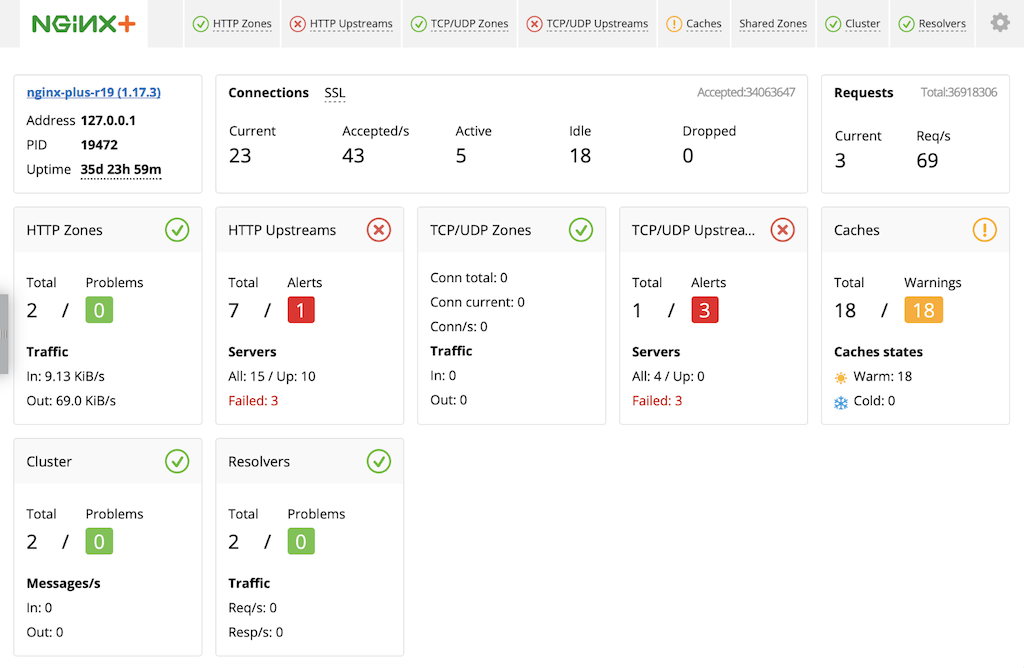 For more information about live activity monitoring, see the [NGINX Plus Admin Guide.](nginx/admin-guide/monitoring/live-activity-monitoring.md)
The quickest way to configure live activity monitoring and the built‑in dashboard is to download the sample configuration file from the NGINX website and modify it as necessary. For more complete instructions, see [Live Activity Monitoring of NGINX Plus in 3 Simple Steps](https://www.nginx.com/blog/live-activity-monitoring-nginx-plus-3-simple-steps/) on our blog.
1. Download the **status.conf** file to the NGINX Plus server:
```none
# cd /etc/nginx/conf.d
# curl https://www.nginx.com/resource/conf/status.conf > status.conf
```
2. Verify that the main configuration file (**/etc/nginx/nginx.conf**) has an `include` directive that reads the file into the `http` context. The following is specific to **status.conf**, but a wildcard version also works:
```nginx
# In the 'http' block in nginx.conf
include conf.d/status.conf;
```
Directive documentation: [include](https://nginx.org/en/docs/ngx_core_module.html#include)
3. Customize the file for your deployment as specified by comments in the file. In particular, the default settings in the file allow anyone on any network to access the dashboard. We strongly recommend that you restrict access to the dashboard with one or more of the following methods:
- **IP address‑based access control lists (ACLs)**. In the sample configuration file, uncomment the `allow` and `deny` directives, and substitute the address of your administrative network for 10.0.0.0/8. Only users on the specified network can access the status page.
```nginx
allow 10.0.0.0/8;
deny all;
```
Directive documentation: [allow and deny](https://nginx.org/en/docs/http/ngx_http_access_module.html)
- **HTTP Basic authentication**. In the sample configuration file, uncomment the `auth_basic` and `auth_basic_user_file` directives and add user entries to the **/etc/nginx/users** file (for example, by using an [htpasswd generator](https://httpd.apache.org/docs/2.4/programs/htpasswd.html)). If you have an Apache installation, another option is to reuse an existing **htpasswd** file.
```nginx
auth_basic on;
auth_basic_user_file /etc/nginx/users;
```
Directive documentation: [auth_basic and auth_basic_user_file](https://nginx.org/en/docs/http/ngx_http_auth_basic_module.html)
- **Client certificates**, which are part of a complete configuration of SSL/TLS. For more information, see the [NGINX Plus Admin Guide](../../admin-guide/security-controls/terminating-ssl-http.md) and the reference documentation for the HTTP [SSL/TLS](https://nginx.org/en/docs/http/ngx_http_ssl_module.html) module.
- **Firewall**. Configure your firewall to disallow outside access to the port for the dashboard (8080 in the sample configuration file).
3. In each upstream group that you want to monitor, include the `zone` directive to define a shared memory zone that stores the group's configuration and run‑time state, which are shared among worker processes.
For example, to monitor your WebLogic Server application servers, add the `zone` directive to the **weblogic** upstream group (if you followed the instructions in [Configuring Application Health Checks](#health-checks), you already made this change).
```nginx
# In the 'http' block
upstream weblogic {
zone weblogic 64k;
server 192.168.25.33:7001;
server 192.168.25.69:7001;
# ...
}
```
Directive documentation: [server](https://nginx.org/en/docs/http/ngx_http_upstream_module.html#server), [upstream](https://nginx.org/en/docs/http/ngx_http_upstream_module.html#upstream), [zone](https://nginx.org/en/docs/http/ngx_http_upstream_module.html#zone)
4. In the `server` block for HTTPS traffic (created in [Configuring Virtual Servers for HTTP and HTTPS Traffic](#virtual-servers)), add the `status_zone` directive:
```nginx
# In the 'server' block for HTTPS traffic
status_zone weblogic-ssl;
```
Directive documentation: [status_zone](https://nginx.org/en/docs/http/ngx_http_status_module.html#status_zone)
When you reload the NGINX Plus configuration file, for example by running the `nginx -s reload` command, the NGINX Plus dashboard is available immediately at http://_nginx-plus-server-address_:8080.
### Enabling Dynamic Reconfiguration of Upstream Groups
With NGINX Plus, you can reconfigure load‑balanced server groups (both HTTP and TCP/UDP) dynamically using either DNS or the NGINX Plus API introduced in NGINX Plus R13. See the NGINX Plus Admin Guide for a more detailed discussion of the DNS and [API](nginx/admin-guide/load-balancer/dynamic-configuration-api.md) methods.
To enable dynamic reconfiguration of your upstream group of WebLogic Server app servers using the NGINX Plus API:
1. Include the `zone` directive in the **weblogic** upstream group to create a shared memory zone that stores the group's configuration and run‑time state, which are shared among worker processes. (If you followed the instructions in [Configuring Application Health Checks](#health-checks) or [Enabling Live Activity Monitoring](#live-activity-monitoring), you already made this change.)
```nginx
# In the 'http' block
upstream weblogic {
zone weblogic 64k;
server 192.168.25.33:7001;
server 192.168.25.69:7001;
# ...
}
```
Directive documentation: [server](https://nginx.org/en/docs/http/ngx_http_upstream_module.html#server), [upstream](https://nginx.org/en/docs/http/ngx_http_upstream_module.html#upstream), [zone](https://nginx.org/en/docs/http/ngx_http_upstream_module.html#zone)
2. In the `server` block for HTTPS traffic (created in [Configuring Virtual Servers for HTTP and HTTPS Traffic](#virtual-servers)), add a new `location` block for the NGINX Plus API, containing the `api` directive (**/api** is also the conventional name for the location, as used here).
(If you configured [live activity monitoring](#live-activity-monitoring) by downloading the **status.conf** file, it already includes this block.)
We strongly recommend that you restrict access to the location so that only authorized administrators can access the NGINX Plus API. The `allow` and `deny` directives in the following example permit access only from the localhost address (127.0.0.1).
```nginx
# In the 'server' block for HTTPS traffic
location /api {
api write=on;
allow 127.0.0.1;
deny all;
}
```
Directive documentation: [allow and deny](https://nginx.org/en/docs/http/ngx_http_access_module.html), [api](https://nginx.org/en/docs/http/ngx_http_api_module.html#api)
### Full Configuration for Enhanced Load Balancing
The full configuration for enhanced load balancing appears here for your convenience. It goes in the `http` context. The complete file is available for [download](https://www.nginx.com/resource/conf/weblogic-enhanced.conf) from the NGINX website.
We recommend that you do not copy text directly from this document, but instead use the method described in [Creating and Modifying Configuration Files](#config-files) to include these directives in your configuration – add an `include` directive to the `http` context of the main **nginx.conf** file to read in the contents of **/etc/nginx/conf.d/weblogic-enhanced.conf**.
```nginx
proxy_cache_path /tmp/NGINX_cache/ keys_zone=backcache:10m;
# WebSocket configuration
map $http_upgrade $connection_upgrade {
default upgrade;
'' close;
}
# Map the PURGE method to the request method, for cache purging
map $request_method $purge_method {
PURGE 1;
default 0;
}
# Application health checks
match health_check {
status 200;
header Content-Type = text/html;
body ~ "Welcome To Dizzyworld";
}
upstream weblogic {
# Shared memory zone for application health checks, live activity
# monitoring, and dynamic reconfiguration
zone weblogic 64k;
# List of WebLogic Server application servers
server 192.168.25.33:7001 slow_start=30s;
server 192.168.25.69:7001 slow_start=30s;
# Session persistence based on JSESSIONID
sticky learn create=$upstream_cookie_JSESSIONID
lookup=$cookie_JSESSIONID
zone=client_sessions:1m;
}
server {
listen 80;
server_name example.com;
# Required for live activity monitoring of HTTP traffic
status_zone weblogic;
# Redirect all HTTP requests to HTTPS
location / {
return 301 https://$server_name$request_uri;
}
}
server {
listen 443 ssl;
http2 on;
server_name example.com;
# Required for live activity monitoring of HTTPS traffic
status_zone weblogic-ssl;
ssl_certificate /etc/nginx/ssl/certificate-name;
ssl_certificate_key /etc/nginx/ssl/private-key;
ssl_session_cache shared:SSL:1m;
ssl_prefer_server_ciphers on;
# Load balance requests for '/weblogic-app/' across WebLogic Server
# application servers
location /weblogic-app/ {
proxy_pass http://weblogic;
proxy_cache backcache;
# Enable purging of the content cache
proxy_cache_purge $purge_method;
# Active health checks
health_check uri=/benefits match=health_check;
}
# Return a 302 redirect to '/weblogic-app/' when user requests '/'
location = / {
return 302 /weblogic-app/;
}
# WebSocket configuration
location /wstunnel/ {
proxy_pass http://weblogic;
proxy_http_version 1.1;
proxy_set_header Upgrade $http_upgrade;
proxy_set_header Connection $connection_upgrade;
}
# Secured access to the NGINX Plus API
location /api {
api write=on;
allow 127.0.0.1; # Permit access from localhost
deny all; # Deny access from everywhere else
}
}
```
## Resources
- [NGINX Plus Overview](https://www.f5.com/products/nginx/nginx-plus)
- [NGINX Plus Admin Guide](/nginx/admin-guide/_index.md)
- [NGINX Wiki](https://www.nginx.com/resources/wiki/)
### Revision History
- Version 5 (May 2024) – Update about HTTP/2 support (the [http2](https://nginx.org/en/docs/http/ngx_http_v2_module.html#http2) directive)
- Version 4 (April 2018) – Update about the NGINX Plus API (NGINX Plus R13, NGINX Open Source 1.13.4)
- Version 3 (April 2017) – Update about HTTP/2 support (NGINX Plus R11 and later)
- Version 2 (January 2016) – Update about HTTP/2 support (NGINX Plus R8, NGINX 1.9.9)
- Version 1 (December 2015) – Initial version (NGINX Plus R7, NGINX 1.9.5)
For more information about live activity monitoring, see the [NGINX Plus Admin Guide.](nginx/admin-guide/monitoring/live-activity-monitoring.md)
The quickest way to configure live activity monitoring and the built‑in dashboard is to download the sample configuration file from the NGINX website and modify it as necessary. For more complete instructions, see [Live Activity Monitoring of NGINX Plus in 3 Simple Steps](https://www.nginx.com/blog/live-activity-monitoring-nginx-plus-3-simple-steps/) on our blog.
1. Download the **status.conf** file to the NGINX Plus server:
```none
# cd /etc/nginx/conf.d
# curl https://www.nginx.com/resource/conf/status.conf > status.conf
```
2. Verify that the main configuration file (**/etc/nginx/nginx.conf**) has an `include` directive that reads the file into the `http` context. The following is specific to **status.conf**, but a wildcard version also works:
```nginx
# In the 'http' block in nginx.conf
include conf.d/status.conf;
```
Directive documentation: [include](https://nginx.org/en/docs/ngx_core_module.html#include)
3. Customize the file for your deployment as specified by comments in the file. In particular, the default settings in the file allow anyone on any network to access the dashboard. We strongly recommend that you restrict access to the dashboard with one or more of the following methods:
- **IP address‑based access control lists (ACLs)**. In the sample configuration file, uncomment the `allow` and `deny` directives, and substitute the address of your administrative network for 10.0.0.0/8. Only users on the specified network can access the status page.
```nginx
allow 10.0.0.0/8;
deny all;
```
Directive documentation: [allow and deny](https://nginx.org/en/docs/http/ngx_http_access_module.html)
- **HTTP Basic authentication**. In the sample configuration file, uncomment the `auth_basic` and `auth_basic_user_file` directives and add user entries to the **/etc/nginx/users** file (for example, by using an [htpasswd generator](https://httpd.apache.org/docs/2.4/programs/htpasswd.html)). If you have an Apache installation, another option is to reuse an existing **htpasswd** file.
```nginx
auth_basic on;
auth_basic_user_file /etc/nginx/users;
```
Directive documentation: [auth_basic and auth_basic_user_file](https://nginx.org/en/docs/http/ngx_http_auth_basic_module.html)
- **Client certificates**, which are part of a complete configuration of SSL/TLS. For more information, see the [NGINX Plus Admin Guide](../../admin-guide/security-controls/terminating-ssl-http.md) and the reference documentation for the HTTP [SSL/TLS](https://nginx.org/en/docs/http/ngx_http_ssl_module.html) module.
- **Firewall**. Configure your firewall to disallow outside access to the port for the dashboard (8080 in the sample configuration file).
3. In each upstream group that you want to monitor, include the `zone` directive to define a shared memory zone that stores the group's configuration and run‑time state, which are shared among worker processes.
For example, to monitor your WebLogic Server application servers, add the `zone` directive to the **weblogic** upstream group (if you followed the instructions in [Configuring Application Health Checks](#health-checks), you already made this change).
```nginx
# In the 'http' block
upstream weblogic {
zone weblogic 64k;
server 192.168.25.33:7001;
server 192.168.25.69:7001;
# ...
}
```
Directive documentation: [server](https://nginx.org/en/docs/http/ngx_http_upstream_module.html#server), [upstream](https://nginx.org/en/docs/http/ngx_http_upstream_module.html#upstream), [zone](https://nginx.org/en/docs/http/ngx_http_upstream_module.html#zone)
4. In the `server` block for HTTPS traffic (created in [Configuring Virtual Servers for HTTP and HTTPS Traffic](#virtual-servers)), add the `status_zone` directive:
```nginx
# In the 'server' block for HTTPS traffic
status_zone weblogic-ssl;
```
Directive documentation: [status_zone](https://nginx.org/en/docs/http/ngx_http_status_module.html#status_zone)
When you reload the NGINX Plus configuration file, for example by running the `nginx -s reload` command, the NGINX Plus dashboard is available immediately at http://_nginx-plus-server-address_:8080.
### Enabling Dynamic Reconfiguration of Upstream Groups
With NGINX Plus, you can reconfigure load‑balanced server groups (both HTTP and TCP/UDP) dynamically using either DNS or the NGINX Plus API introduced in NGINX Plus R13. See the NGINX Plus Admin Guide for a more detailed discussion of the DNS and [API](nginx/admin-guide/load-balancer/dynamic-configuration-api.md) methods.
To enable dynamic reconfiguration of your upstream group of WebLogic Server app servers using the NGINX Plus API:
1. Include the `zone` directive in the **weblogic** upstream group to create a shared memory zone that stores the group's configuration and run‑time state, which are shared among worker processes. (If you followed the instructions in [Configuring Application Health Checks](#health-checks) or [Enabling Live Activity Monitoring](#live-activity-monitoring), you already made this change.)
```nginx
# In the 'http' block
upstream weblogic {
zone weblogic 64k;
server 192.168.25.33:7001;
server 192.168.25.69:7001;
# ...
}
```
Directive documentation: [server](https://nginx.org/en/docs/http/ngx_http_upstream_module.html#server), [upstream](https://nginx.org/en/docs/http/ngx_http_upstream_module.html#upstream), [zone](https://nginx.org/en/docs/http/ngx_http_upstream_module.html#zone)
2. In the `server` block for HTTPS traffic (created in [Configuring Virtual Servers for HTTP and HTTPS Traffic](#virtual-servers)), add a new `location` block for the NGINX Plus API, containing the `api` directive (**/api** is also the conventional name for the location, as used here).
(If you configured [live activity monitoring](#live-activity-monitoring) by downloading the **status.conf** file, it already includes this block.)
We strongly recommend that you restrict access to the location so that only authorized administrators can access the NGINX Plus API. The `allow` and `deny` directives in the following example permit access only from the localhost address (127.0.0.1).
```nginx
# In the 'server' block for HTTPS traffic
location /api {
api write=on;
allow 127.0.0.1;
deny all;
}
```
Directive documentation: [allow and deny](https://nginx.org/en/docs/http/ngx_http_access_module.html), [api](https://nginx.org/en/docs/http/ngx_http_api_module.html#api)
### Full Configuration for Enhanced Load Balancing
The full configuration for enhanced load balancing appears here for your convenience. It goes in the `http` context. The complete file is available for [download](https://www.nginx.com/resource/conf/weblogic-enhanced.conf) from the NGINX website.
We recommend that you do not copy text directly from this document, but instead use the method described in [Creating and Modifying Configuration Files](#config-files) to include these directives in your configuration – add an `include` directive to the `http` context of the main **nginx.conf** file to read in the contents of **/etc/nginx/conf.d/weblogic-enhanced.conf**.
```nginx
proxy_cache_path /tmp/NGINX_cache/ keys_zone=backcache:10m;
# WebSocket configuration
map $http_upgrade $connection_upgrade {
default upgrade;
'' close;
}
# Map the PURGE method to the request method, for cache purging
map $request_method $purge_method {
PURGE 1;
default 0;
}
# Application health checks
match health_check {
status 200;
header Content-Type = text/html;
body ~ "Welcome To Dizzyworld";
}
upstream weblogic {
# Shared memory zone for application health checks, live activity
# monitoring, and dynamic reconfiguration
zone weblogic 64k;
# List of WebLogic Server application servers
server 192.168.25.33:7001 slow_start=30s;
server 192.168.25.69:7001 slow_start=30s;
# Session persistence based on JSESSIONID
sticky learn create=$upstream_cookie_JSESSIONID
lookup=$cookie_JSESSIONID
zone=client_sessions:1m;
}
server {
listen 80;
server_name example.com;
# Required for live activity monitoring of HTTP traffic
status_zone weblogic;
# Redirect all HTTP requests to HTTPS
location / {
return 301 https://$server_name$request_uri;
}
}
server {
listen 443 ssl;
http2 on;
server_name example.com;
# Required for live activity monitoring of HTTPS traffic
status_zone weblogic-ssl;
ssl_certificate /etc/nginx/ssl/certificate-name;
ssl_certificate_key /etc/nginx/ssl/private-key;
ssl_session_cache shared:SSL:1m;
ssl_prefer_server_ciphers on;
# Load balance requests for '/weblogic-app/' across WebLogic Server
# application servers
location /weblogic-app/ {
proxy_pass http://weblogic;
proxy_cache backcache;
# Enable purging of the content cache
proxy_cache_purge $purge_method;
# Active health checks
health_check uri=/benefits match=health_check;
}
# Return a 302 redirect to '/weblogic-app/' when user requests '/'
location = / {
return 302 /weblogic-app/;
}
# WebSocket configuration
location /wstunnel/ {
proxy_pass http://weblogic;
proxy_http_version 1.1;
proxy_set_header Upgrade $http_upgrade;
proxy_set_header Connection $connection_upgrade;
}
# Secured access to the NGINX Plus API
location /api {
api write=on;
allow 127.0.0.1; # Permit access from localhost
deny all; # Deny access from everywhere else
}
}
```
## Resources
- [NGINX Plus Overview](https://www.f5.com/products/nginx/nginx-plus)
- [NGINX Plus Admin Guide](/nginx/admin-guide/_index.md)
- [NGINX Wiki](https://www.nginx.com/resources/wiki/)
### Revision History
- Version 5 (May 2024) – Update about HTTP/2 support (the [http2](https://nginx.org/en/docs/http/ngx_http_v2_module.html#http2) directive)
- Version 4 (April 2018) – Update about the NGINX Plus API (NGINX Plus R13, NGINX Open Source 1.13.4)
- Version 3 (April 2017) – Update about HTTP/2 support (NGINX Plus R11 and later)
- Version 2 (January 2016) – Update about HTTP/2 support (NGINX Plus R8, NGINX 1.9.9)
- Version 1 (December 2015) – Initial version (NGINX Plus R7, NGINX 1.9.5)