# Single Sign-On with Ping Identity and njs
> Enable OpenID Connect-based single-sign for applications proxied by NGINX Plus, using Ping Identity as the identity provider (IdP).
**Note:** This guide applies to NGINX Plus [Release 15](nginx/releases.md#r15) and later, based on the [`nginx-openid-connect`](https://github.com/nginxinc/nginx-openid-connect) GitHub repo. Starting with NGINX Plus [Release 34](nginx/releases.md#r34), use the simpler solution with the [native OpenID connect module](https://nginx.org/en/docs/http/ngx_http_oidc_module.html).
See [Single Sign-On With Ping Identity](nginx/deployment-guides/single-sign-on/ping-identity.md) for details.
This guide explains how to enable single sign-on (SSO) for applications being proxied by F5 NGINX Plus. The solution uses OpenID Connect as the authentication mechanism, with Ping Identity as the identity provider (IdP) and NGINX Plus as the relying party.
The instructions in this document apply to both Ping Identity's on‑premises and cloud products, PingFederate and PingOne for Enterprise.
**Note:** You can find more information about the NGINX Plus OpenID Connect integration in the project's [GitHub repo](https://github.com/nginxinc/nginx-openid-connect#nginx-openid-connect).
## Prerequisites
The instructions assume you have the following:
- A running deployment of PingFederate or PingOne for Enterprise, and a Ping Identity account. For installation and configuration instructions, see the documentation for [PingFederate](https://docs.pingidentity.com/bundle/pingfederate-93/page/tau1564002955783.html) or [PingOne for Enterprise](https://docs.pingidentity.com/bundle/pingone/page/fjn1564020491958-1.html).
- An NGINX Plus subscription and NGINX Plus R15 or later. For installation instructions, see the [NGINX Plus Admin Guide](https://docs.nginx.com/nginx/admin-guide/installing-nginx/installing-nginx-plus/).
- The [NGINX JavaScript module](https://nginx.org/en/docs/njs/index.html) (njs), required for handling the interaction between NGINX Plus and the IdP. After installing NGINX Plus, install the module with the command for your operating system.
For Debian and Ubuntu:
```none
sudo apt install nginx-plus-module-njs
```
For CentOS, RHEL, and Oracle Linux:
```shell
sudo yum install nginx-plus-module-njs
```
- The following directive included in the top-level ("main") configuration context in **/etc/nginx/nginx.conf**, to load the NGINX JavaScript module:
```nginx
load_module modules/ngx_http_js_module.so;
```
## Configuring PingFederate or PingOne for Enterprise
**Note:** This guide uses the GUI provided with PingOne for Enterprise. It reflects the GUI at the time of initial publication, but the GUI is subject to change. The PingFederate user interface might also differ. Use this guide as a reference and adapt as necessary for the UI you are using.
Create a new application for NGINX Plus:
1. Log in to your Ping Identity account. The administrative dashboard opens automatically. In this guide, we show the PingOne for Enterprise dashboard, and for brevity refer simply to ”PingOne”.
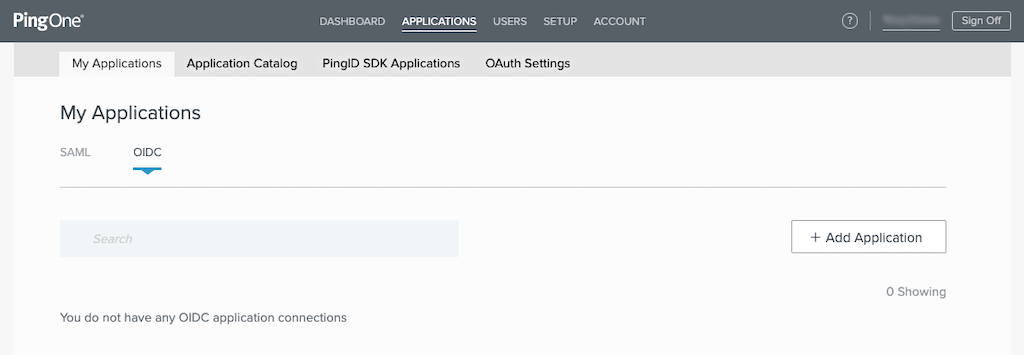
2. Click APPLICATIONS in the title bar, and on the **My Applications** page that opens, click **OIDC** and then the **+ Add Application** button.
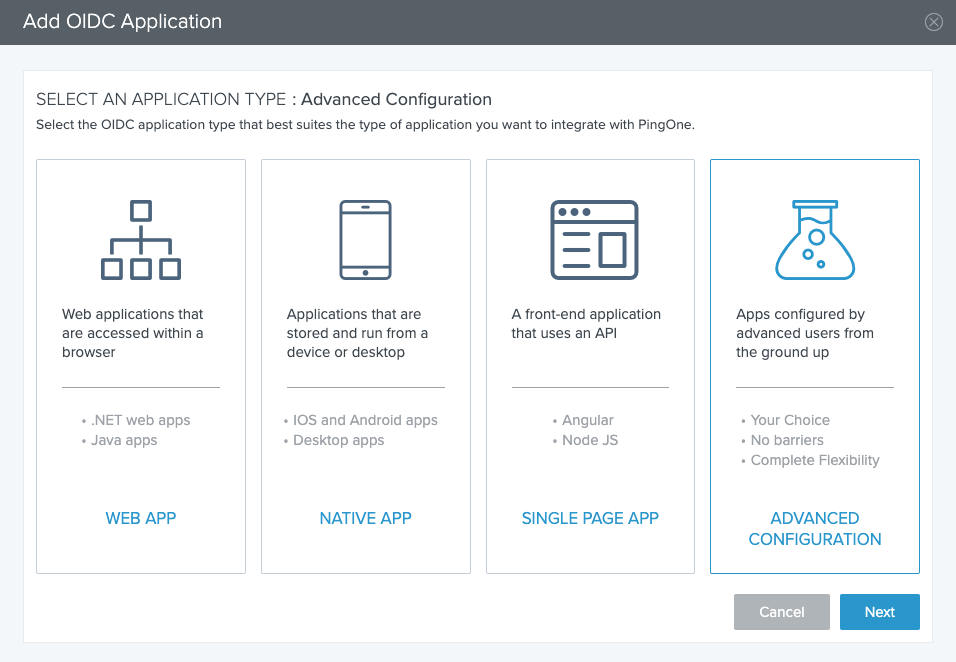
 3. The **Add OIDC Application** window pops up. Click the ADVANCED CONFIGURATION box, and then the Next button.
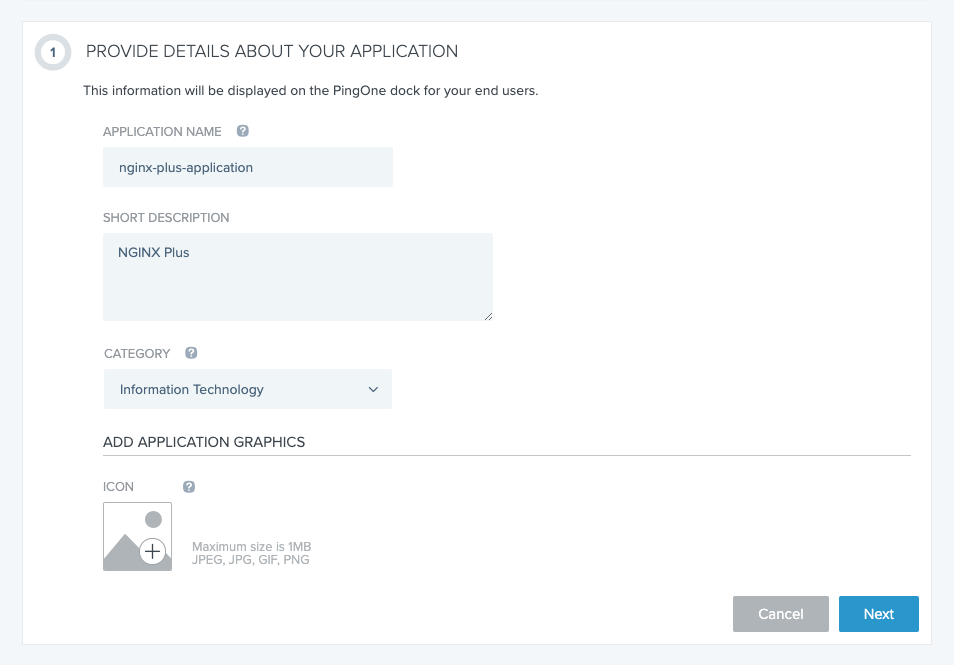
 4. In section 1 (PROVIDE DETAILS ABOUT YOUR APPLICATION), type a name in the **APPLICATION NAME** field and a short description in the **SHORT DESCRIPTION** field. Here, we're using **nginx-plus-application** and **NGINX Plus**. Choose a value from the **CATEGORY** drop‑down menu; here we’re using **Information Technology**. You can also add an icon if you wish. Click the Next button.
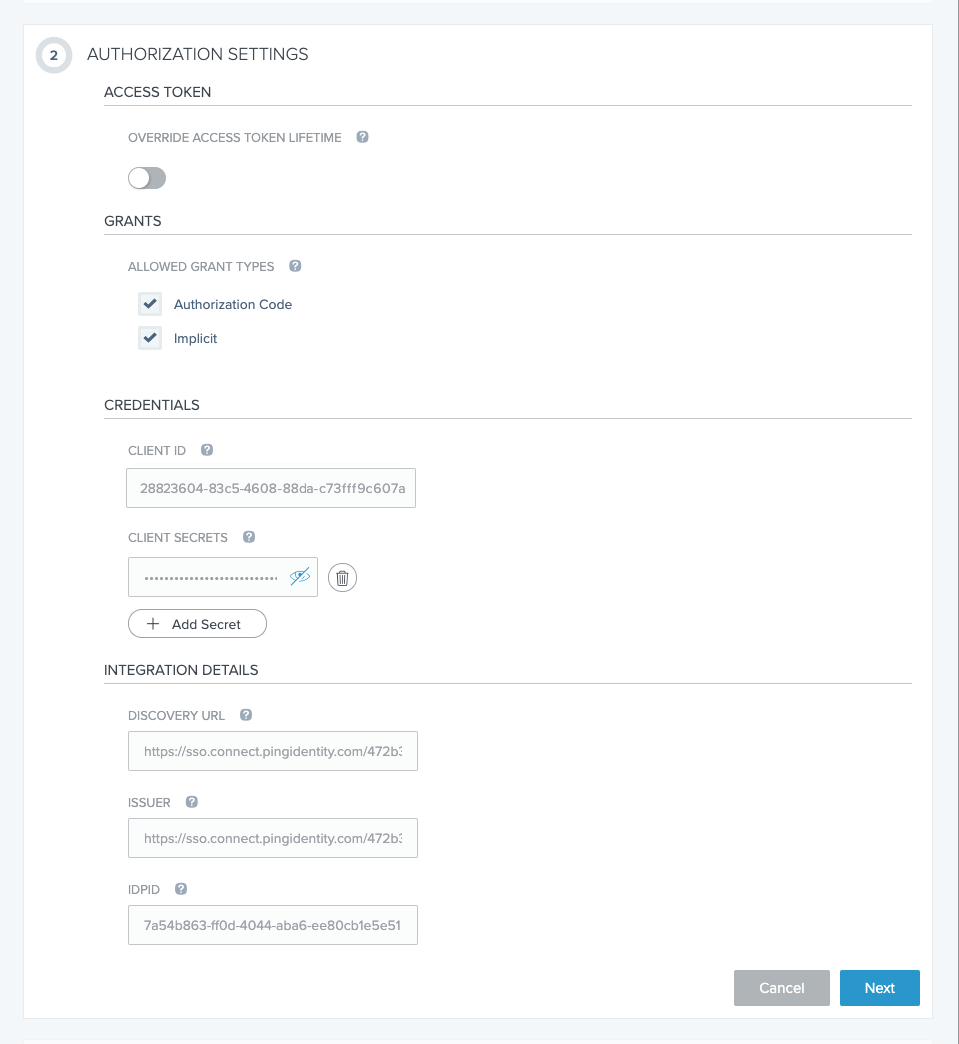
 5. In section 2 (AUTHORIZATION SETTINGS), perform these steps:
1. Under **GRANTS**, click both **Authorization Code** and **Implicit**.
5. In section 2 (AUTHORIZATION SETTINGS), perform these steps:
1. Under **GRANTS**, click both **Authorization Code** and **Implicit**.
2. Under **CREDENTIALS**, click the **+ Add Secret** button. PingOne creates a client secret and opens the **CLIENT SECRETS** field to display it, as shown in the screenshot. To see the actual value of the secret, click the eye icon.
3. Click the Next button.
 6. In section 3 (SSO FLOW AND AUTHENTICATION SETTINGS):
1. In the **START SSO URL** field, type the URL where users access your application. Here we’re using **https://example.com**.
2. In the **REDIRECT URIS** field, type the URI of the NGINX Plus instance including the port number, and ending in **/\_codexch**. Here we’re using **https://my-nginx-plus.example.com:443/\_codexch** (the full value is not visible in the screenshot).
**Notes:**
- For production, we strongly recommend that you use SSL/TLS (port 443).
- The port number is mandatory even when you're using the default port for HTTP (80) or HTTPS (443).
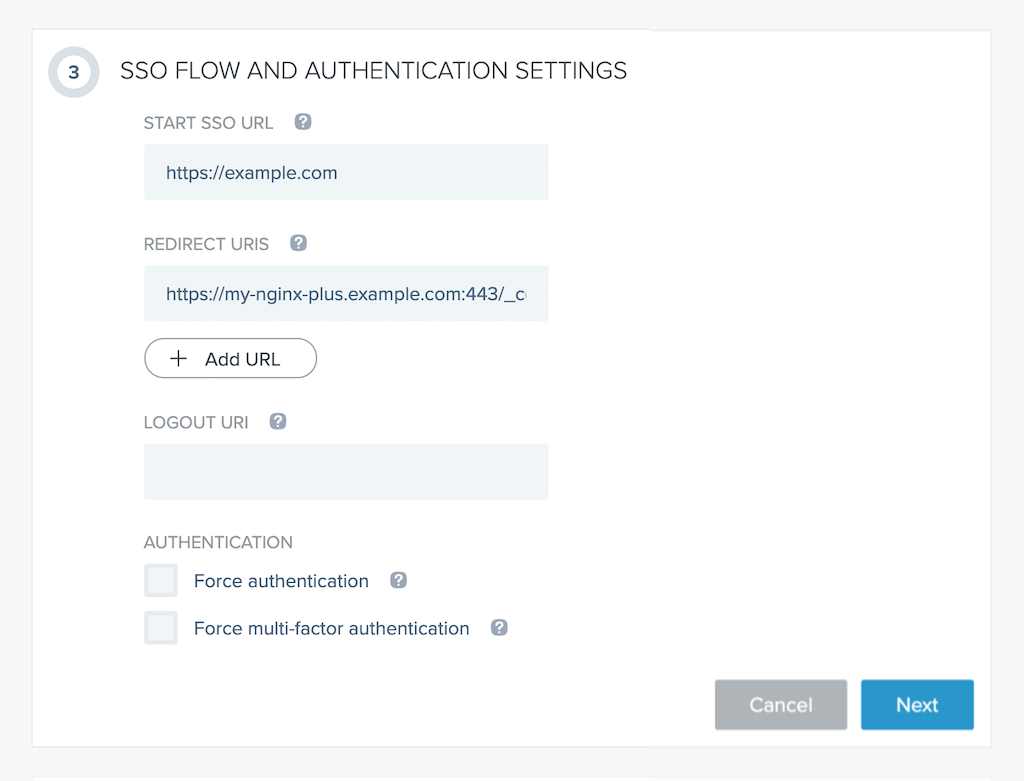
6. In section 3 (SSO FLOW AND AUTHENTICATION SETTINGS):
1. In the **START SSO URL** field, type the URL where users access your application. Here we’re using **https://example.com**.
2. In the **REDIRECT URIS** field, type the URI of the NGINX Plus instance including the port number, and ending in **/\_codexch**. Here we’re using **https://my-nginx-plus.example.com:443/\_codexch** (the full value is not visible in the screenshot).
**Notes:**
- For production, we strongly recommend that you use SSL/TLS (port 443).
- The port number is mandatory even when you're using the default port for HTTP (80) or HTTPS (443).
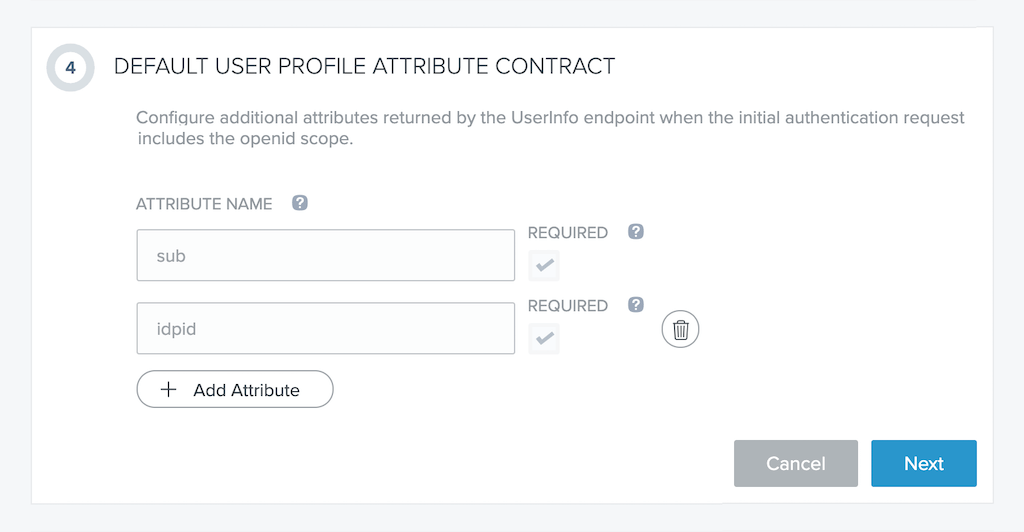
 7. In section 4 (DEFAULT USER PROFILE ATTRIBUTE CONTRACT), optionally add attributes to the required **sub** and **idpid** attributes, by clicking the **+ Add Attribute** button. We’re not adding any in this example. When finished, click the Next button.
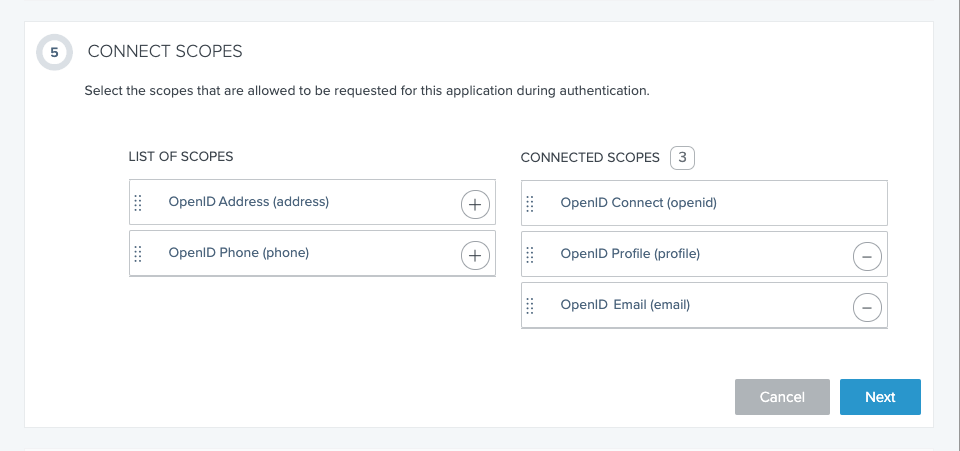
 8. In section 5 (CONNECT SCOPES), click the circled plus-sign on the **OpenID Profile (profile)** and **OpenID Profile Email (email)** scopes in the **LIST OF SCOPES** column. They are moved to the **CONNECTED SCOPES** column, as shown in the screenshot. Click the Next button.
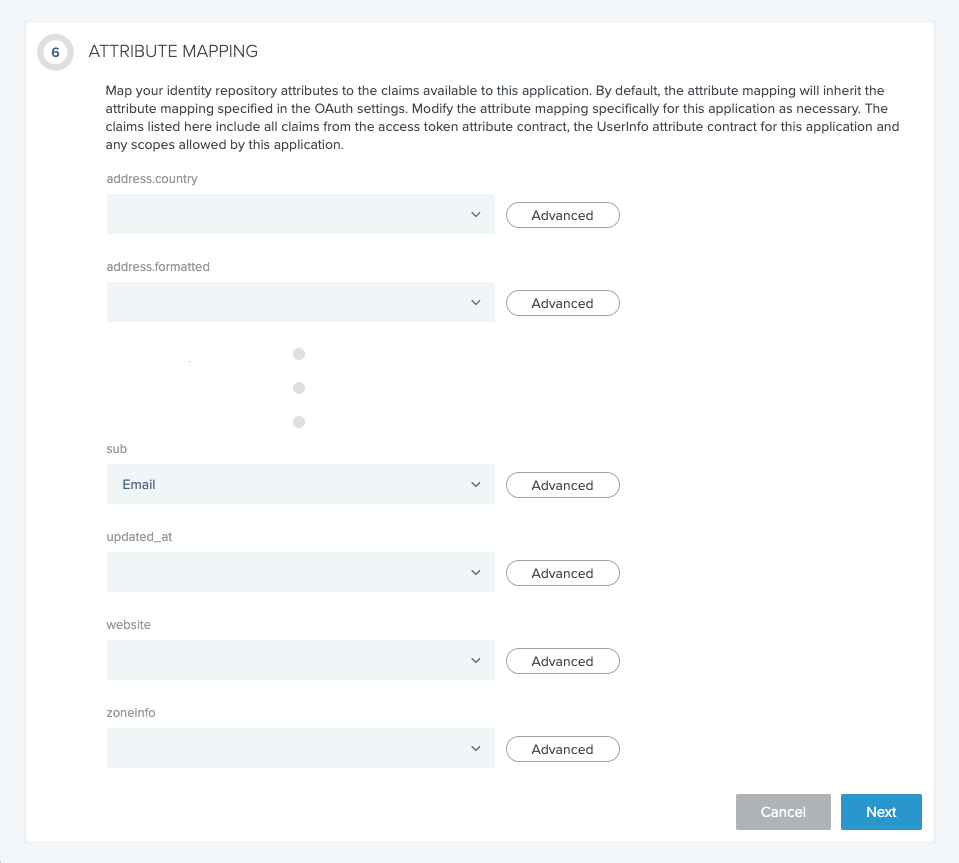
 9. In section 6 (ATTRIBUTE MAPPING), map attributes from your identity repository to the claims available to the application. The one attribute you must map is **sub**, and here we have selected the value **Email** from the drop‑down menu (the screenshot is abridged for brevity).
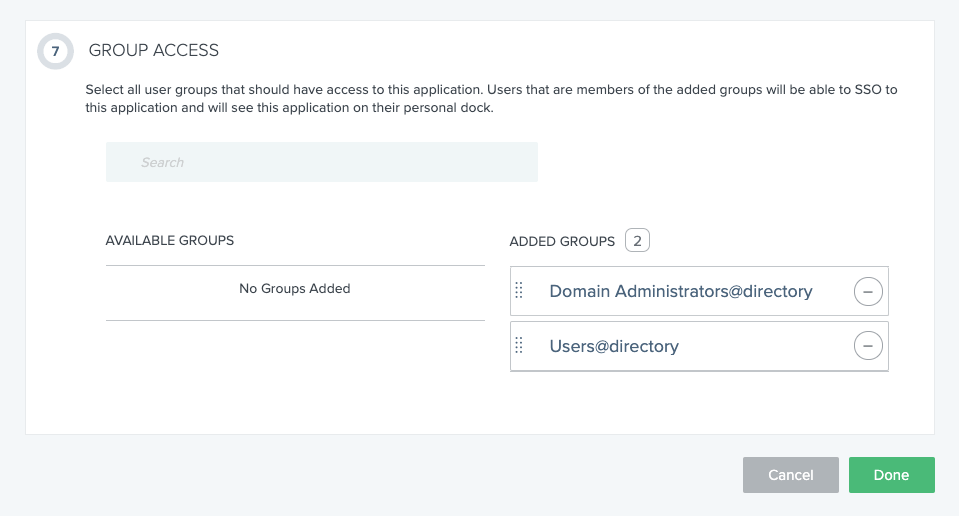
 10. In section 7 (GROUP ACCESS), select the groups that will have access to the application, by clicking the circled plus-sign on the corresponding boxes in the **AVAILABLE GROUPS** column. The boxes move to the **ADDED GROUPS** column. As shown in the screenshot we have selected the two default groups, **Domain Administrators@directory** and **Users@directory**.
Click the Done button.
10. In section 7 (GROUP ACCESS), select the groups that will have access to the application, by clicking the circled plus-sign on the corresponding boxes in the **AVAILABLE GROUPS** column. The boxes move to the **ADDED GROUPS** column. As shown in the screenshot we have selected the two default groups, **Domain Administrators@directory** and **Users@directory**.
Click the Done button.
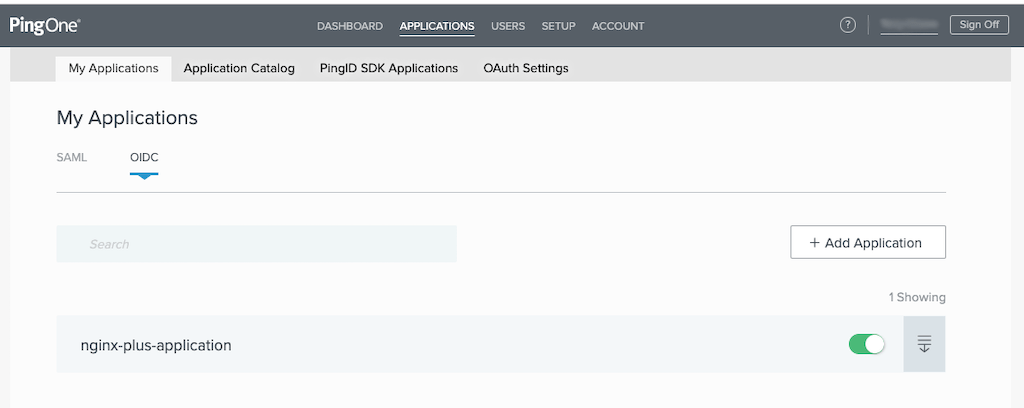
 11. You are returned to the **My Applications** window, which now includes a row for **nginx-plus-application**. Click the toggle switch at the right end of the row to the “on” position, as shown in the screenshot. Then click the “expand” icon at the end of the row, to display the application’s details.
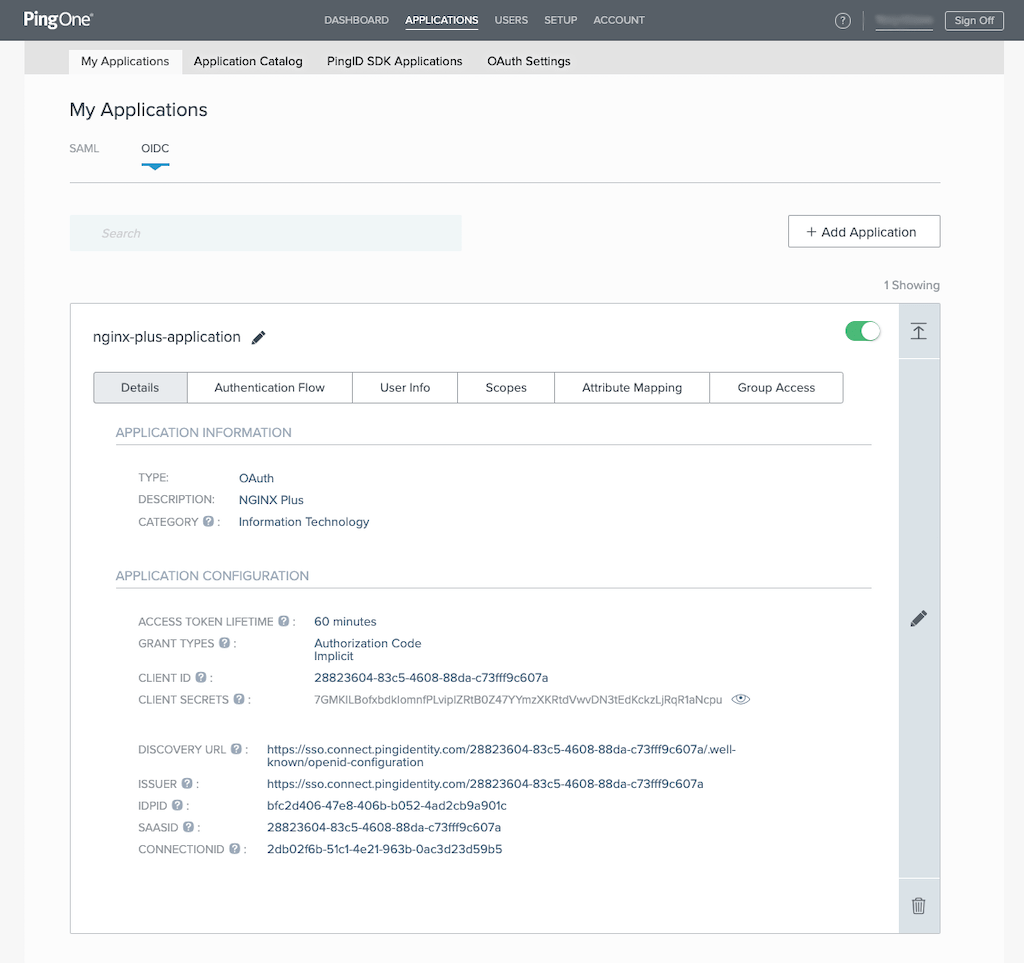
 12. On the page that opens, make note of the values in the following fields on the **Details** tab. You will add them to the NGINX Plus configuration in [Step 4 of _Configuring NGINX Plus_](#nginx-plus-variables).
- **CLIENT ID** (in the screenshot, **28823604-83c5-4608-88da-c73fff9c607a**)
- **CLIENT SECRETS** (in the screenshot, **7GMKILBofxb...**); click on the eye icon to view the actual value
12. On the page that opens, make note of the values in the following fields on the **Details** tab. You will add them to the NGINX Plus configuration in [Step 4 of _Configuring NGINX Plus_](#nginx-plus-variables).
- **CLIENT ID** (in the screenshot, **28823604-83c5-4608-88da-c73fff9c607a**)
- **CLIENT SECRETS** (in the screenshot, **7GMKILBofxb...**); click on the eye icon to view the actual value
 ## Configuring NGINX Plus
Configure NGINX Plus as the OpenID Connect relying party:
1. Create a clone of the [**nginx-openid-connect**](https://github.com/nginxinc/nginx-openid-connect) GitHub repository.
```shell
git clone https://github.com/nginxinc/nginx-openid-connect
```
2. Copy these files from the clone to **/etc/nginx/conf.d**:
- **frontend.conf**
- **openid\_connect.js**
- **openid\_connect.server\_conf**
3. Get the URLs for the authorization endpoint, token endpoint, and JSON Web Key (JWK) file from the Ping Identity configuration. Run the following `curl` command in a terminal, piping the output to the indicated `python` command to output the entire configuration in an easily readable format. We've abridged the output to show only the relevant fields.
The `` variable is the value in the **CLIENT ID** field that you noted in [Step 12 of _Configuring PingFederate or PingOne for Enterprise_](#ping-client-id-secrets).
**Note:** This `curl` command is appropriate for Ping One for Enterprise. For PingFederate, you might need to replace `sso.connect.pingidentity.com` with the IP address of your local PingFederate server.
```shell
$ curl sso.connect.pingidentity.com//.well-known/openid-configuration | python -m json.tool
...
{
"authorization_endpoint": "https://sso.connect.pingidentity.com/sso/as/authorization.oauth2",
...
"jwks_uri": "https://sso.connect.pingidentity.com/sso/as/jwks",
...
"token_endpoint": "https://sso.connect.pingidentity.com/sso/as/token.oauth2",
...
}
```
4. In your preferred text editor, open **/etc/nginx/conf.d/frontend.conf**. Change the second parameter of each of the following [set](http://nginx.org/en/docs/http/ngx_http_rewrite_module.html#set) directives to the specified value:
- `set $oidc_authz_endpoint` – Value of `authorization_endpoint` from [Step 3](#nginx-plus-urls) (in this guide, `https://sso.connect.pingidentity.com/sso/as/authorization.oauth2`)
- `set $oidc_token_endpoint` – Value of `token_endpoint` from [Step 3](#nginx-plus-urls) (in this guide, `https://sso.connect.pingidentity.com/sso/as/token.oauth2`)
- `set $oidc_client` – Value in the **CLIENT ID** field in [Step 12 of _Configuring PingFederate or PingOne for Enterprise_](#ping-client-id-secrets) (in this guide, `28823604-83c5-4608-88da-c73fff9c607a`)
- `set $oidc_client_secret` – Value in the **CLIENT SECRETS** field in [Step 12 of _Configuring PingFederate or PingOne for Enterprise_](#ping-client-id-secrets) (in this guide, `7GMKILBofxb...`)
- `set $oidc_hmac_key` – A unique, long, and secure phrase
5. Configure the JWK file. The procedure depends on which version of NGINX Plus you are using.
- In NGINX Plus R17 and later, NGINX Plus can read the JWK file directly from the URL reported as `jwks_uri` in [Step 3](#nginx-plus-urls). Change **/etc/nginx/conf.d/frontend.conf** as follows:
1. Comment out (or remove) the [auth_jwt_key_file](http://nginx.org/en/docs/http/ngx_http_auth_jwt_module.html#auth_jwt_key_file) directive.
2. Uncomment the [auth_jwt_key_request](http://nginx.org/en/docs/http/ngx_http_auth_jwt_module.html#auth_jwt_key_request) directive. (Its parameter, `/_jwks_uri`, refers to the value of the `$oidc_jwt_keyfile` variable, which you set in the next step.)
3. Change the second parameter of the `set $oidc_jwt_keyfile` directive to the value reported in the `jwks_uri` field in [Step 3](#nginx-plus-urls) (in this guide, `https://sso.connect.pingidentity.com/sso/as/jwks`).
- In NGINX Plus R16 and earlier, the JWK file must be on the local disk. (You can also use this method with NGINX Plus R17 and later if you wish.)
1. Copy the JSON contents from the JWK file named in the `jwks_uri` field in [Step 3](#nginx-plus-urls) (in this guide, `https://sso.connect.pingidentity.com/sso/as/jwks`) to a local file (for example, `/etc/nginx/my_ping_identity_jwk.json`).
2. In **/etc/nginx/conf.d/frontend.conf**, change the second parameter of the `set $oidc_jwt_keyfile` directive to the local file path.
6. Confirm that the user named by the [user](http://nginx.org/en/docs/ngx_core_module.html#user) directive in the NGINX Plus configuration (in **/etc/nginx/nginx.conf** by convention) has read permission on the JWK file.
## Testing
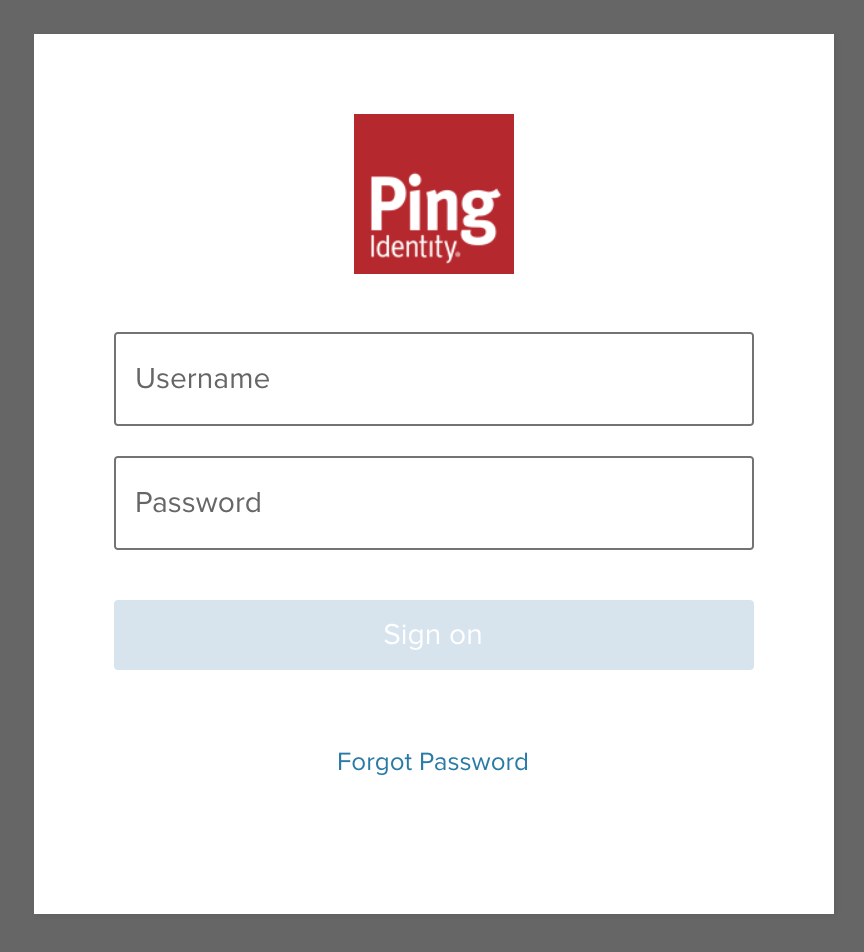
In a browser, enter the address of your NGINX Plus instance and try to log in using the credentials of a user assigned to the application (see [Step 10 of _PingFederate or PingOne for Enterprise_](#ping-group-access)).
## Configuring NGINX Plus
Configure NGINX Plus as the OpenID Connect relying party:
1. Create a clone of the [**nginx-openid-connect**](https://github.com/nginxinc/nginx-openid-connect) GitHub repository.
```shell
git clone https://github.com/nginxinc/nginx-openid-connect
```
2. Copy these files from the clone to **/etc/nginx/conf.d**:
- **frontend.conf**
- **openid\_connect.js**
- **openid\_connect.server\_conf**
3. Get the URLs for the authorization endpoint, token endpoint, and JSON Web Key (JWK) file from the Ping Identity configuration. Run the following `curl` command in a terminal, piping the output to the indicated `python` command to output the entire configuration in an easily readable format. We've abridged the output to show only the relevant fields.
The `` variable is the value in the **CLIENT ID** field that you noted in [Step 12 of _Configuring PingFederate or PingOne for Enterprise_](#ping-client-id-secrets).
**Note:** This `curl` command is appropriate for Ping One for Enterprise. For PingFederate, you might need to replace `sso.connect.pingidentity.com` with the IP address of your local PingFederate server.
```shell
$ curl sso.connect.pingidentity.com//.well-known/openid-configuration | python -m json.tool
...
{
"authorization_endpoint": "https://sso.connect.pingidentity.com/sso/as/authorization.oauth2",
...
"jwks_uri": "https://sso.connect.pingidentity.com/sso/as/jwks",
...
"token_endpoint": "https://sso.connect.pingidentity.com/sso/as/token.oauth2",
...
}
```
4. In your preferred text editor, open **/etc/nginx/conf.d/frontend.conf**. Change the second parameter of each of the following [set](http://nginx.org/en/docs/http/ngx_http_rewrite_module.html#set) directives to the specified value:
- `set $oidc_authz_endpoint` – Value of `authorization_endpoint` from [Step 3](#nginx-plus-urls) (in this guide, `https://sso.connect.pingidentity.com/sso/as/authorization.oauth2`)
- `set $oidc_token_endpoint` – Value of `token_endpoint` from [Step 3](#nginx-plus-urls) (in this guide, `https://sso.connect.pingidentity.com/sso/as/token.oauth2`)
- `set $oidc_client` – Value in the **CLIENT ID** field in [Step 12 of _Configuring PingFederate or PingOne for Enterprise_](#ping-client-id-secrets) (in this guide, `28823604-83c5-4608-88da-c73fff9c607a`)
- `set $oidc_client_secret` – Value in the **CLIENT SECRETS** field in [Step 12 of _Configuring PingFederate or PingOne for Enterprise_](#ping-client-id-secrets) (in this guide, `7GMKILBofxb...`)
- `set $oidc_hmac_key` – A unique, long, and secure phrase
5. Configure the JWK file. The procedure depends on which version of NGINX Plus you are using.
- In NGINX Plus R17 and later, NGINX Plus can read the JWK file directly from the URL reported as `jwks_uri` in [Step 3](#nginx-plus-urls). Change **/etc/nginx/conf.d/frontend.conf** as follows:
1. Comment out (or remove) the [auth_jwt_key_file](http://nginx.org/en/docs/http/ngx_http_auth_jwt_module.html#auth_jwt_key_file) directive.
2. Uncomment the [auth_jwt_key_request](http://nginx.org/en/docs/http/ngx_http_auth_jwt_module.html#auth_jwt_key_request) directive. (Its parameter, `/_jwks_uri`, refers to the value of the `$oidc_jwt_keyfile` variable, which you set in the next step.)
3. Change the second parameter of the `set $oidc_jwt_keyfile` directive to the value reported in the `jwks_uri` field in [Step 3](#nginx-plus-urls) (in this guide, `https://sso.connect.pingidentity.com/sso/as/jwks`).
- In NGINX Plus R16 and earlier, the JWK file must be on the local disk. (You can also use this method with NGINX Plus R17 and later if you wish.)
1. Copy the JSON contents from the JWK file named in the `jwks_uri` field in [Step 3](#nginx-plus-urls) (in this guide, `https://sso.connect.pingidentity.com/sso/as/jwks`) to a local file (for example, `/etc/nginx/my_ping_identity_jwk.json`).
2. In **/etc/nginx/conf.d/frontend.conf**, change the second parameter of the `set $oidc_jwt_keyfile` directive to the local file path.
6. Confirm that the user named by the [user](http://nginx.org/en/docs/ngx_core_module.html#user) directive in the NGINX Plus configuration (in **/etc/nginx/nginx.conf** by convention) has read permission on the JWK file.
## Testing
In a browser, enter the address of your NGINX Plus instance and try to log in using the credentials of a user assigned to the application (see [Step 10 of _PingFederate or PingOne for Enterprise_](#ping-group-access)).
 ## Troubleshooting
See the [**Troubleshooting**](https://github.com/nginxinc/nginx-openid-connect#troubleshooting) section at the **nginx-openid-connect** repository on GitHub.
### Revision History
- Version 2 (March 2020) – Updates to _Configuring NGINX Plus_ section
- Version 1 (January 2020) – Initial version (NGINX Plus Release 20)
## Troubleshooting
See the [**Troubleshooting**](https://github.com/nginxinc/nginx-openid-connect#troubleshooting) section at the **nginx-openid-connect** repository on GitHub.
### Revision History
- Version 2 (March 2020) – Updates to _Configuring NGINX Plus_ section
- Version 1 (January 2020) – Initial version (NGINX Plus Release 20)