# Active-Passive HA for NGINX Plus on AWS Using Elastic IP Addresses
> Create a highly available active-passive deployment of F5 NGINX Plus on AWS with a solution combining keepalived and the AWS Elastic IP address feature.
This guide explains how to create a high availability (HA) active‑passive deployment of F5 NGINX Plus in the [Amazon Web Services](https://aws.amazon.com/) (AWS) cloud. It combines the `keepalived`‑based solution for high availability (provided by NGINX for on‑premises HA deployments) with the AWS Elastic IP address feature.
NGINX also provides a [solution for active‑active HA of NGINX Plus in AWS](high-availability-network-load-balancer.md), using AWS Network Load Balancer.
## Overview
The [supported solution for HA deployment](nginx/admin-guide/high-availability/ha-keepalived.md) of NGINX Plus that uses `keepalived` is designed for on‑premises deployments. It is typically not viable in cloud environments, such as AWS, because of the networking restrictions they impose.
One method for deploying NGINX Plus in a highly available manner on AWS is to use ELB in front of NGINX Plus instances. But, the method has several disadvantages:
- It increases the cost of your deployment.
- It limits the number of protocols NGINX Plus and your applications can support. In particular, ELB does not support UDP load balancing.
- It does not provide a single static IP address for NGINX Plus instances, which is a crucial requirement for some applications.
This guide explains how to create an active‑passive HA deployment of NGINX Plus on AWS that doesn’t require ELB and thus isn't subject to its disadvantages. It combines the `keepalived`‑based solution with AWS’s [Elastic IP address](https://docs.aws.amazon.com/AWSEC2/latest/UserGuide/elastic-ip-addresses-eip.html) feature. Most importantly, this method addresses the requirement for a single IP address: as long as the primary NGINX Plus instance is operating correctly, it has the Elastic IP address. If the primary fails, the backup instance becomes the primary and reassociates the Elastic IP address with itself, as shown in the figure.
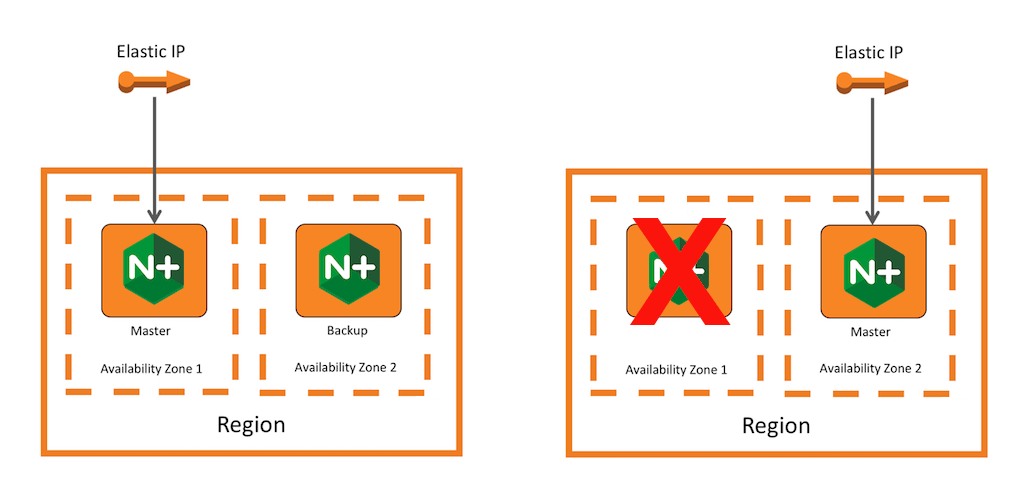 As an alternative to ELB, you can use Route 53 to distribute traffic among NGINX Plus instances, relying only on DNS load balancing. However, clients as well as intermediate DNS servers often cache DNS records as specified by the TTL value in the record, so there can be a delay in propagation of the updated records to the clients. This can lead to increased downtime of your applications as observed by clients. Such an update can happen when Route 53 detects the failure of an NGINX Plus instance and removes the corresponding record. In contrast, when you use the HA solution along with Route 53, the record usually doesn’t change because the IP address stays the same, and there is no TTL‑related problem.
**Notes:**
- We have successfully tested the instructions on Ubuntu 16.04 LTS (Xenial Xerus) and CentOS 7, with `keepalived` installed from the respective OS vendor repositories.
- Except as noted, perform all steps on both the primary and backup instance.
- The solution is not covered by your NGINX Plus support contract.
- In addition to the [active‑active HA solution](high-availability-network-load-balancer.md) mentioned above, NGINX offers a solution based on [AWS Lambda](https://aws.amazon.com/lambda/) which does not require installation of any additional software on the NGINX Plus instances. The [F5 Professional Services](https://www.f5.com/services) team can deploy and configure the Lambda‑based solution for you and provide support.
## Step 1 – Launch Two NGINX Plus Instances
The scripts in the HA solution use the AWS API to associate an Elastic IP address with an NGINX Plus instance, and so must have credentials for accessing the API. AWS uses _IAM roles_ to handle credentials, so you need to create a role and attach it to each NGINX Plus instance. Perform these steps (for step‑by‑step instructions, see the [AWS documentation](https://docs.aws.amazon.com/AWSEC2/latest/UserGuide/iam-roles-for-amazon-ec2.html)):
1. Create an IAM role and attach the following custom policy to it. The instance to which the policy applies can manipulate the Elastic IP address (adopt or release it) as well as perform the two indicated `Describe` actions.
```json
{
"Version": "2012-10-17",
"Statement": [
{
"Effect": "Allow",
"Action": [
"ec2:AssociateAddress",
"ec2:DescribeInstances",
"ec2:DescribeAddresses",
"ec2:DisassociateAddress"
],
"Resource": "*"
}
]
}
```
Alternatively, you can use the `AWS_ACCESS_KEY_ID` and `AWS_SECRET_ACCESS_KEY` environment variables to provide credentials to the HA scripts, as shown in [Step 5](#ha-aws_keepalived-configure).
2. Launch two instances and [install NGINX Plus](nginx/admin-guide/installing-nginx/installing-nginx-plus-amazon-web-services.md) on each. (As noted, we tested the instructions on Ubuntu 16.04 LTS and CentOS 7.)
3. Attach this IAM role to the instance.
## Step 2 – Allocate an Elastic IP address
Allocate an Elastic IP address and remember its ID. For detailed instructions, see the [AWS documentation](https://docs.aws.amazon.com/AWSEC2/latest/UserGuide/elastic-ip-addresses-eip.html#using-instance-addressing-eips-allocating).
## Step 3 – Install `keepalived`, `wget`, and the AWS CLI
1. Install two packages from your OS vendor’s repository: **keepalived** and **wget**, which is used by the HA scripts.
- On Ubuntu systems:
```shell
sudo apt-get install keepalived wget
```
- On CentOS systems:
```shell
sudo yum install keepalived wget
```
2. Follow the instructions in the [AWS documentation](https://docs.aws.amazon.com/cli/latest/userguide/installing.html) to install the AWS CLI.
## Step 4 – Download the HA Scripts
The NGINX Plus HA solution uses two scripts, which are invoked by `keepalived`:
- **nginx-ha-check** – Determines the health of NGINX Plus.
- **nginx-ha-notify** – Moves the Elastic IP address when a state transition happens, for example when the backup instance becomes the primary.
1. Create a directory for the scripts, if it doesn’t already exist.
- On Ubuntu systems:
```shell
sudo mkdir -p /usr/lib/keepalived
```
- On CentOS systems:
```shell
sudo mkdir -p /usr/libexec/keepalived
```
2. Download the scripts from our [GitHub repository](https://github.com/nginxinc/aws-ha-elastic-ip) into the created directory.
## Step 5 – Configure `keepalived` and the HA Scripts
There are two configuration files for the HA solution:
- **keepalived.conf** – The main configuration file for `keepalived`, slightly different for each NGINX Plus instance.
- **nginx-ha-notify** – The script you downloaded in [Step 4](#ha-aws_ha-scripts), with several user‑defined variables.
### Creating keepalived.conf
In the **/etc/keepalived** folder create a file named **keepalived.conf** with the following content.
```nginx
vrrp_script chk_nginx_service {
script ""
interval 3
weight 50
}
vrrp_instance VI_1 {
interface eth0
priority
virtual_router_id 51
advert_int 1
unicast_src_ip
unicast_peer {
}
authentication {
auth_type PASS
auth_pass
}
track_script {
chk_nginx_service
}
notify ""
}
```
You must change values for the following configuration keywords. As you do so, also remove the angle brackets enclosing the placeholder value:
- `script` in the `chk_nginx_service` block – The script that sends health checks to NGINX Plus.
- On Ubuntu systems, **/usr/lib/keepalived/nginx-ha-check**
- On CentOS systems, **/usr/libexec/keepalived/nginx-ha-check**
- `priority` – The value that controls which instance becomes primary, with a higher value meaning a higher priority. Use `101` for the primary instance and `100` for the backup.
- `unicast_src_ip` – This instance's IP address.
- `unicast_peer` – The other instance's IP address.
- `auth_pass` – The password string used for authentication between peers.
- `notify` – The script that is invoked during a state transition.
- On Ubuntu systems, **/usr/lib/keepalived/nginx-ha-notify**
- On CentOS systems, **/usr/libexec/keepalived/nginx-ha-notify**
### Creating nginx-ha-notify
Modify the user‑defined variables section of the **nginx-ha-notify** script, replacing each `` placeholder with the value specified in the list below:
```none
export AWS_ACCESS_KEY_ID=
export AWS_SECRET_ACCESS_KEY=
export AWS_DEFAULT_REGION=
HA_NODE_1=
HA_NODE_2=
ALLOCATION_ID=
```
- `AWS_ACCESS_KEY_ID` and `AWS_SECRET_ACCESS_KEY` – The credentials for accessing the AWS API. Set them only when an IAM instance profile isn’t used. Otherwise, delete the corresponding two lines.
- `AWS_DEFAULT_REGION` – The AWS region of your deployment.
- `HA_NODE_1` and `HA_NODE_2` – The internal or private DNS names of the two NGINX Plus instances.
- `ALLOCATION_ID` – The ID of the allocated Elastic IP address.
## Testing
Run this command on both instances to start the `keepalived` daemon:
```shell
sudo service keepalived start
```
The instance with the higher priority becomes the primary. As a result, the Elastic IP address becomes associated with the primary instance, as confirmed on the AWS Console.
To check the instance state, run:
```shell
cat /var/run/nginx-ha-keepalived.state
```
The command outputs `STATE=MASTER` on the primary instance and `STATE=BACKUP` otherwise.
You can simulate the failure of the primary by stopping the `keepalived` daemon:
```shell
sudo service keepalived stop
```
Check the state on the backup instance, confirming that it has transitioned to `MASTER`. Additionally, in the AWS Console the Elastic IP address is now associated with the new primary instance.
## Troubleshooting
If the solution doesn’t work as expected, check the `keepalived` logs, which are written to **/var/log/syslog**. Also, you can manually run the commands that invoke the `awscli` utility in the **nginx-ha-notify** script to check that the utility is working properly.
## Caveats
- In most of our tests it took 5 to 6 seconds for the Elastic IP address to be reassigned.
- Elastic IP address reassignment is not free; see [Amazon EC2 Pricing](https://aws.amazon.com/ec2/pricing/).
- Because the solution relies on the AWS APIs to reassociate the Elastic IP address, in some rare scenarios – such as flip‑flopping (the instances change state rapidly) or split‑brain (the instances lose connectivity with each other) – it is possible for the Elastic IP address not to end up associated with the primary. We were not able to reproduce these scenarios in our testing, however. If they occur, restart `keepalived` on both instances.
## Resources
[Download the HA solution from the NGINX GitHub repository](https://github.com/nginxinc/aws-ha-elastic-ip).
### Revision History
- Version 1 (May 2017) – Initial version (NGINX Plus Release 12)
As an alternative to ELB, you can use Route 53 to distribute traffic among NGINX Plus instances, relying only on DNS load balancing. However, clients as well as intermediate DNS servers often cache DNS records as specified by the TTL value in the record, so there can be a delay in propagation of the updated records to the clients. This can lead to increased downtime of your applications as observed by clients. Such an update can happen when Route 53 detects the failure of an NGINX Plus instance and removes the corresponding record. In contrast, when you use the HA solution along with Route 53, the record usually doesn’t change because the IP address stays the same, and there is no TTL‑related problem.
**Notes:**
- We have successfully tested the instructions on Ubuntu 16.04 LTS (Xenial Xerus) and CentOS 7, with `keepalived` installed from the respective OS vendor repositories.
- Except as noted, perform all steps on both the primary and backup instance.
- The solution is not covered by your NGINX Plus support contract.
- In addition to the [active‑active HA solution](high-availability-network-load-balancer.md) mentioned above, NGINX offers a solution based on [AWS Lambda](https://aws.amazon.com/lambda/) which does not require installation of any additional software on the NGINX Plus instances. The [F5 Professional Services](https://www.f5.com/services) team can deploy and configure the Lambda‑based solution for you and provide support.
## Step 1 – Launch Two NGINX Plus Instances
The scripts in the HA solution use the AWS API to associate an Elastic IP address with an NGINX Plus instance, and so must have credentials for accessing the API. AWS uses _IAM roles_ to handle credentials, so you need to create a role and attach it to each NGINX Plus instance. Perform these steps (for step‑by‑step instructions, see the [AWS documentation](https://docs.aws.amazon.com/AWSEC2/latest/UserGuide/iam-roles-for-amazon-ec2.html)):
1. Create an IAM role and attach the following custom policy to it. The instance to which the policy applies can manipulate the Elastic IP address (adopt or release it) as well as perform the two indicated `Describe` actions.
```json
{
"Version": "2012-10-17",
"Statement": [
{
"Effect": "Allow",
"Action": [
"ec2:AssociateAddress",
"ec2:DescribeInstances",
"ec2:DescribeAddresses",
"ec2:DisassociateAddress"
],
"Resource": "*"
}
]
}
```
Alternatively, you can use the `AWS_ACCESS_KEY_ID` and `AWS_SECRET_ACCESS_KEY` environment variables to provide credentials to the HA scripts, as shown in [Step 5](#ha-aws_keepalived-configure).
2. Launch two instances and [install NGINX Plus](nginx/admin-guide/installing-nginx/installing-nginx-plus-amazon-web-services.md) on each. (As noted, we tested the instructions on Ubuntu 16.04 LTS and CentOS 7.)
3. Attach this IAM role to the instance.
## Step 2 – Allocate an Elastic IP address
Allocate an Elastic IP address and remember its ID. For detailed instructions, see the [AWS documentation](https://docs.aws.amazon.com/AWSEC2/latest/UserGuide/elastic-ip-addresses-eip.html#using-instance-addressing-eips-allocating).
## Step 3 – Install `keepalived`, `wget`, and the AWS CLI
1. Install two packages from your OS vendor’s repository: **keepalived** and **wget**, which is used by the HA scripts.
- On Ubuntu systems:
```shell
sudo apt-get install keepalived wget
```
- On CentOS systems:
```shell
sudo yum install keepalived wget
```
2. Follow the instructions in the [AWS documentation](https://docs.aws.amazon.com/cli/latest/userguide/installing.html) to install the AWS CLI.
## Step 4 – Download the HA Scripts
The NGINX Plus HA solution uses two scripts, which are invoked by `keepalived`:
- **nginx-ha-check** – Determines the health of NGINX Plus.
- **nginx-ha-notify** – Moves the Elastic IP address when a state transition happens, for example when the backup instance becomes the primary.
1. Create a directory for the scripts, if it doesn’t already exist.
- On Ubuntu systems:
```shell
sudo mkdir -p /usr/lib/keepalived
```
- On CentOS systems:
```shell
sudo mkdir -p /usr/libexec/keepalived
```
2. Download the scripts from our [GitHub repository](https://github.com/nginxinc/aws-ha-elastic-ip) into the created directory.
## Step 5 – Configure `keepalived` and the HA Scripts
There are two configuration files for the HA solution:
- **keepalived.conf** – The main configuration file for `keepalived`, slightly different for each NGINX Plus instance.
- **nginx-ha-notify** – The script you downloaded in [Step 4](#ha-aws_ha-scripts), with several user‑defined variables.
### Creating keepalived.conf
In the **/etc/keepalived** folder create a file named **keepalived.conf** with the following content.
```nginx
vrrp_script chk_nginx_service {
script ""
interval 3
weight 50
}
vrrp_instance VI_1 {
interface eth0
priority
virtual_router_id 51
advert_int 1
unicast_src_ip
unicast_peer {
}
authentication {
auth_type PASS
auth_pass
}
track_script {
chk_nginx_service
}
notify ""
}
```
You must change values for the following configuration keywords. As you do so, also remove the angle brackets enclosing the placeholder value:
- `script` in the `chk_nginx_service` block – The script that sends health checks to NGINX Plus.
- On Ubuntu systems, **/usr/lib/keepalived/nginx-ha-check**
- On CentOS systems, **/usr/libexec/keepalived/nginx-ha-check**
- `priority` – The value that controls which instance becomes primary, with a higher value meaning a higher priority. Use `101` for the primary instance and `100` for the backup.
- `unicast_src_ip` – This instance's IP address.
- `unicast_peer` – The other instance's IP address.
- `auth_pass` – The password string used for authentication between peers.
- `notify` – The script that is invoked during a state transition.
- On Ubuntu systems, **/usr/lib/keepalived/nginx-ha-notify**
- On CentOS systems, **/usr/libexec/keepalived/nginx-ha-notify**
### Creating nginx-ha-notify
Modify the user‑defined variables section of the **nginx-ha-notify** script, replacing each `` placeholder with the value specified in the list below:
```none
export AWS_ACCESS_KEY_ID=
export AWS_SECRET_ACCESS_KEY=
export AWS_DEFAULT_REGION=
HA_NODE_1=
HA_NODE_2=
ALLOCATION_ID=
```
- `AWS_ACCESS_KEY_ID` and `AWS_SECRET_ACCESS_KEY` – The credentials for accessing the AWS API. Set them only when an IAM instance profile isn’t used. Otherwise, delete the corresponding two lines.
- `AWS_DEFAULT_REGION` – The AWS region of your deployment.
- `HA_NODE_1` and `HA_NODE_2` – The internal or private DNS names of the two NGINX Plus instances.
- `ALLOCATION_ID` – The ID of the allocated Elastic IP address.
## Testing
Run this command on both instances to start the `keepalived` daemon:
```shell
sudo service keepalived start
```
The instance with the higher priority becomes the primary. As a result, the Elastic IP address becomes associated with the primary instance, as confirmed on the AWS Console.
To check the instance state, run:
```shell
cat /var/run/nginx-ha-keepalived.state
```
The command outputs `STATE=MASTER` on the primary instance and `STATE=BACKUP` otherwise.
You can simulate the failure of the primary by stopping the `keepalived` daemon:
```shell
sudo service keepalived stop
```
Check the state on the backup instance, confirming that it has transitioned to `MASTER`. Additionally, in the AWS Console the Elastic IP address is now associated with the new primary instance.
## Troubleshooting
If the solution doesn’t work as expected, check the `keepalived` logs, which are written to **/var/log/syslog**. Also, you can manually run the commands that invoke the `awscli` utility in the **nginx-ha-notify** script to check that the utility is working properly.
## Caveats
- In most of our tests it took 5 to 6 seconds for the Elastic IP address to be reassigned.
- Elastic IP address reassignment is not free; see [Amazon EC2 Pricing](https://aws.amazon.com/ec2/pricing/).
- Because the solution relies on the AWS APIs to reassociate the Elastic IP address, in some rare scenarios – such as flip‑flopping (the instances change state rapidly) or split‑brain (the instances lose connectivity with each other) – it is possible for the Elastic IP address not to end up associated with the primary. We were not able to reproduce these scenarios in our testing, however. If they occur, restart `keepalived` on both instances.
## Resources
[Download the HA solution from the NGINX GitHub repository](https://github.com/nginxinc/aws-ha-elastic-ip).
### Revision History
- Version 1 (May 2017) – Initial version (NGINX Plus Release 12)