
Support
To contact support about F5 NGINXaaS for Azure (NGINXaaS):
-
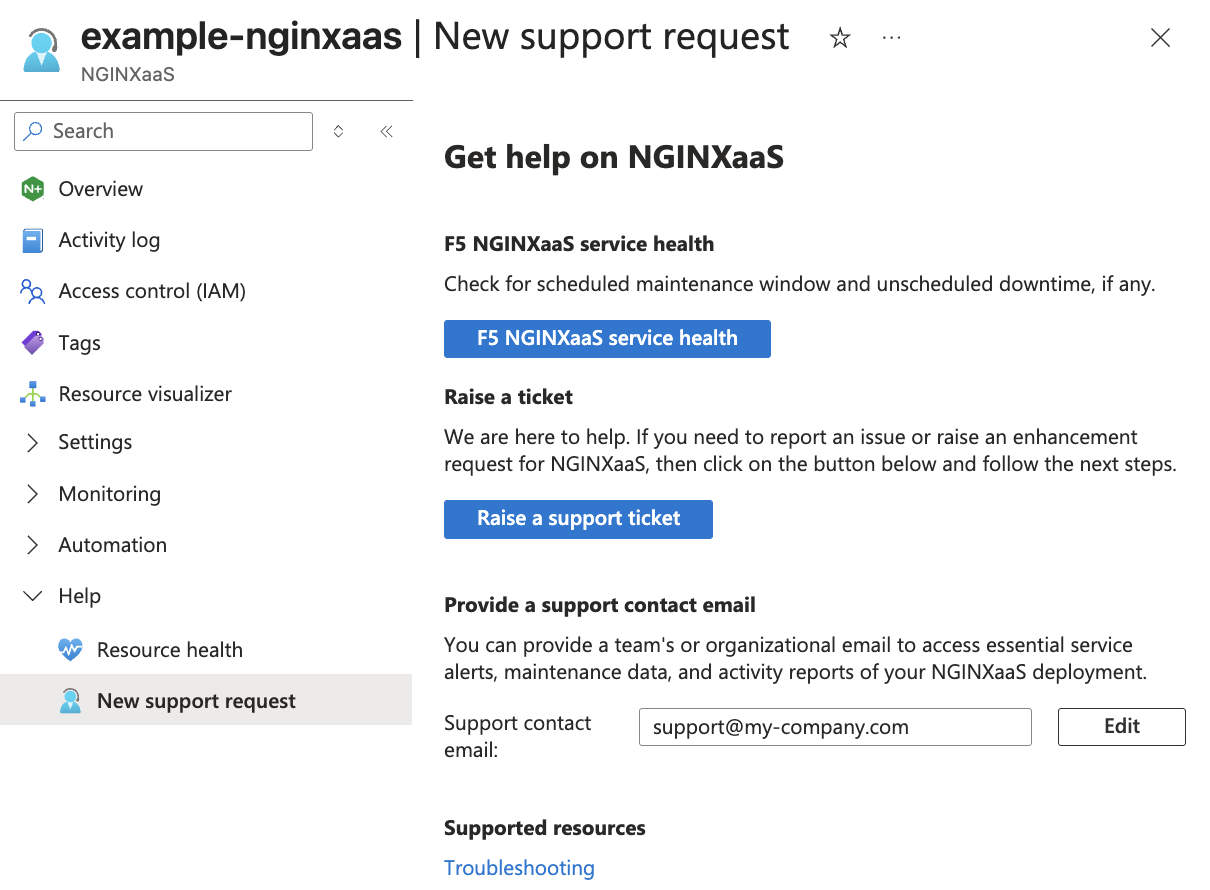
Go to your NGINXaaS deployment.
-
Select Help in the left menu.
-
Select New support request.
-
Select Raise a support ticket.
-
You will be redirected to MyF5 to create a new case. Log in to MyF5 with your F5 account.
If you can’t complete a deployment successfully, the "New support request" option won’t be available on the left-hand navigation menu. To raise a support ticket, go to the MyF5 portal. -
Go to the Support section and select Create a Case.
-
Update the Subject and Description fields to describe the issue, and then select Next.
Make sure the Description field is completed with the relevant information about your issue, bug report, or feedback.
If you are contacting us to report an issue, please include the following information in order for the support team to begin their investigation:
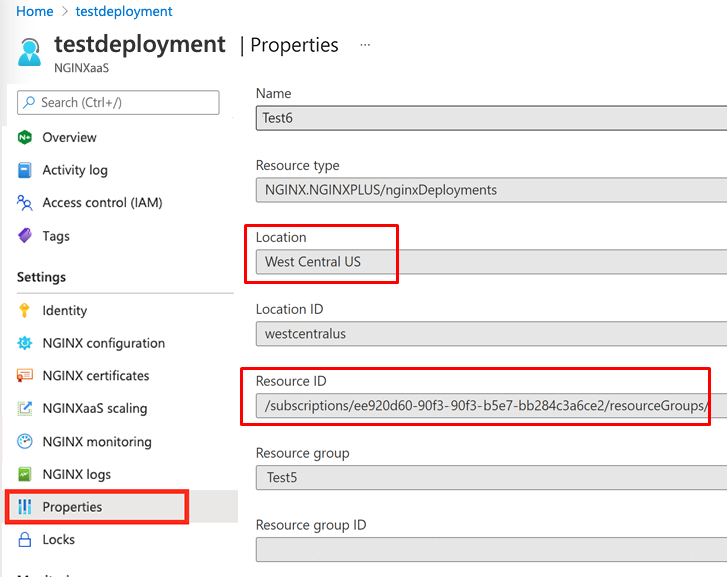
- Location
- Resource ID
- Date and time of the issue
The Location and Resource ID values are available in the Properties section of your deployment:
If your deployment is configured to use F5 WAF for NGINX, please collect the following information also:
- Package versions from the F5 WAF for NGINX page
- Security policies in use and the content of all custom security policies
-
Select NGINX Products as the product family.
-
Select NGINX Marketplace/Cloud in the Product dropdown, and then select Next.
-
Enter the following required fields, at a minimum, and then select Next:
- Reason for contact
- Subscription ID (Select No subscription available or your F5 subscription ID if you have a private offer.)
- Cloud Provider
- Assign a priority
-
Complete the Additional information and Contact details sections for your case and then select Submit.
To provide or update the preferred support contact email:
-
Go to your NGINXaaS for Azure deployment.
-
Select New Support request in the left menu.
-
Select the
EditButton next to the Support Contact Email field. -
Provide a new email address in the field and select Submit.